
If you’ve ever tried to clean your laptop screen and ended up with more smudges than you started with, you’re not alone. Dust, fingerprints, and that mysterious film that builds up after months of use can make even a brand-new display look dull. The good news: learning how to clean laptop screen surfaces safely takes about five minutes, and you probably already own half of what you need.
Before you grab whatever spray bottle is under the sink, though, it’s worth knowing one thing: modern laptop displays have delicate anti-glare and anti-fingerprint coatings that the wrong cleaner can strip right off. So let’s do this properly.
For more ways to keep your machine in good shape, see our laptop care guide.
What You Actually Need (and What to Leave in the Cupboard)
You don’t need a fancy screen-cleaning kit, though they work fine. Here’s what actually matters:
- A clean microfiber cloth — the flat, smooth kind meant for glasses or screens, not the fluffy kind for dusting furniture. One dedicated screen cloth costs almost nothing and lasts for months.
- Distilled water — tap water leaves mineral spots as it dries. A bottle costs about a dollar and lasts forever.
- A small spray bottle — you spray the cloth, never the screen.
What to avoid is just as important. Windex and other ammonia-based glass cleaners can attack the coatings on laptop displays; Lenovo and HP both warn against them in their official care guides. Paper towels and tissues look soft but are abrasive at the microscopic level — use them daily and you’ll slowly scratch the surface. And rough “miracle” sponges like melamine foam will wreck a coating faster than anything else in your kitchen.
How to Clean Your Laptop Screen Step by Step
Turn the laptop off and let it cool down. This isn’t just a safety ritual — a dark, cool screen makes smudges far easier to see, so you’ll know when you’ve actually finished.
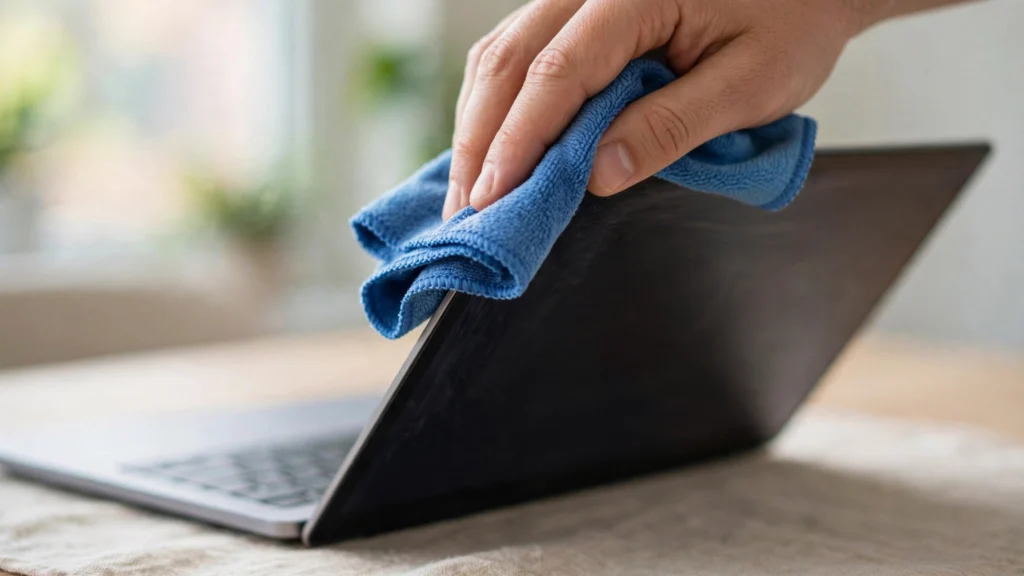
- Dust first. Fold your microfiber cloth and gently wipe the screen in one direction to lift loose dust. Pressure is the enemy here; let the cloth do the work.
- Dampen the cloth — not the screen. Lightly mist distilled water onto the cloth (two or three sprays is plenty). Liquid should never drip, run, or pool near the edges of the display, where it can seep behind the bezel.
- Wipe in smooth, overlapping passes. Use light, even strokes across the screen. For stubborn spots, hold the damp cloth on the smudge for a few seconds to loosen it instead of scrubbing.
- Buff dry with the dry side of the cloth. Flip to a dry section and go over the screen once more. This last pass is what prevents water spots.
That’s the whole method. Five minutes, no streaks, no damage.
How to Clean a Laptop Screen Without Streaks
Streaks happen when cleaning liquid dries unevenly, and two things cause almost all of them: too much liquid and a dirty cloth.
Keep the cloth barely damp — you should never see droplets forming. And wash your microfiber cloth regularly; a cloth loaded with old oils just redistributes them across the display. Hand-wash it with a drop of dish soap, rinse thoroughly, and let it air-dry. Skip fabric softener entirely, because it leaves a residue that defeats the whole purpose.
Wiping in a consistent pattern (top to bottom, slightly overlapping) also helps. Circular scrubbing tends to push grime around in arcs that dry into visible swirls.
A spotless screen pairs well with a snappy system — learn how to open Task Manager on your laptop to spot what’s slowing it down.
What About DIY Methods Like Vinegar or Baking Soda?
Search results are full of home-remedy advice for screens, so let’s sort fact from fiction.
Vinegar: A very diluted vinegar solution (around 1 part vinegar to 10 parts distilled water) shows up everywhere online. It probably won’t destroy your screen, but most manufacturers advise against acids of any kind on coated displays. Since distilled water alone handles normal grime with zero risk, there’s no reason to reach for the vinegar.
Baking soda: This one is an outright no. Baking soda is a mild abrasive — great for a stained mug, terrible for a coated display. Even as a paste, it will micro-scratch the surface and leave a residue that’s harder to remove than the dirt you started with.
Water only: This is the method the big manufacturers actually recommend. A microfiber cloth lightly dampened with distilled water handles everyday dust and fingerprints. For anything greasy, this gentle approach works if you give the cloth a few seconds to loosen the spot. Simple beats clever here.
Can You Use Alcohol Wipes or Glasses Wipes?
Alcohol wipes: It depends on your display. Apple officially says you can use a 70% isopropyl alcohol wipe or a Clorox disinfecting wipe on the hard, nonporous surfaces of most Apple devices — but it specifically excludes certain nano-texture glass displays, where even alcohol is off the table. For Windows laptops, HP and Lenovo take a more conservative line: a damp microfiber cloth first, alcohol only if needed. If your laptop has a nano-texture or matte anti-glare finish, skip alcohol entirely and stick to water.
Glasses wipes: Pre-moistened lens wipes (the individually wrapped kind) are generally fine for spot cleaning, since they’re designed for coated optics. Baby wipes and household wet wipes are not — they often contain moisturizers, fragrances, and preservatives that leave films on glass.
The rule of thumb: if a cleaner was formulated for something tougher than your screen (windows, countertops, bathroom tile), keep it away from your display.
3 Mistakes That Slowly Ruin Laptop Screens
- Pressing too hard. LCD and OLED panels flex. Pressing firmly to “really get that spot” can damage pixels and, on cheaper panels, leave permanent pressure marks. Light touch, every time.
- Spraying liquid directly on the screen. It runs down into the gap between the display and the bezel, where it can reach the backlight or connectors. Always spray the cloth.
- Cleaning while the laptop is hot. A warm screen makes water evaporate in seconds — before you’ve finished wiping — which bakes streaks in place. Power down, wait a few minutes, then clean.
How Often Should You Clean Your Laptop Screen?
For most people, a quick dry wipe once a week and a proper damp clean once a month is plenty. If you eat at your desk or your laptop travels in a bag every day, do the damp clean every couple of weeks. And keep a microfiber cloth in the laptop sleeve — the easiest clean is the one you can do in ten seconds before a meeting.
If your display has bigger problems than dust and smudges, our White Screen of Death troubleshooting guide walks you through the fixes.
Frequently Asked Questions
Can I use Windex on my laptop screen?
No. Windex contains ammonia, which can damage the anti-glare and anti-reflective coatings on modern laptop displays. Use a microfiber cloth lightly dampened with distilled water instead.
Can I clean my laptop screen with alcohol wipes?
Sometimes. Apple permits 70% isopropyl alcohol wipes on most of its displays, but many Windows laptop makers recommend plain water first. Never use alcohol on nano-texture or specialty matte displays, and never use scented or moisturizing wipes.
How do I remove fingerprints from my laptop screen without streaks?
Hold a lightly dampened microfiber cloth on each fingerprint for a few seconds to soften the oils, then wipe in smooth, overlapping strokes and buff dry with the dry side of the cloth. A dirty cloth causes streaks, so wash yours regularly.
Should I clean my laptop screen while it’s on?
It’s better to turn it off. A dark screen shows smudges clearly so you can tell when you’re done, and cleaning a cool, powered-down display avoids instant evaporation that bakes streaks into place.
Can I use glasses wipes on my laptop screen?
Yes, the pre-moistened lens wipes sold for eyeglasses are fine for spot cleaning, since they’re made for coated optics. Avoid baby wipes or household wet wipes, which leave moisturizing residue on the display.
Conclusion
Cleaning your laptop screen well isn’t about buying special products — it’s about using the right technique. A clean microfiber cloth, a little distilled water, light pressure, and a final dry buff will beat any spray-and-pray approach. Do it right, and your display stays sharp, streak-free, and coating-intact for the life of the machine. Your future self, squinting at a crystal-clear screen, says thanks.