
Every laptop owner eventually faces that frustrating moment when an app stops responding, the screen lags, or the fan suddenly spins up for no obvious reason. In these moments, knowing how to open Task Manager in laptop quickly becomes the difference between a calm fix and a stressful restart. Task Manager is one of the most powerful built-in tools Windows provides, yet many people only discover it once something has already gone wrong with their system.
This guide walks through six simple and dependable ways to open Task Manager on a laptop, covering both Windows 10 and Windows 11. From keyboard shortcuts to mouse-based clicks, there is an option here for every type of user, including situations where the screen becomes unresponsive. These methods apply across popular laptop brands such as Dell, Lenovo, ASUS, HP, and Acer, so no matter what device sits in front of you, the same steps will work reliably.
What Task Manager Actually Does
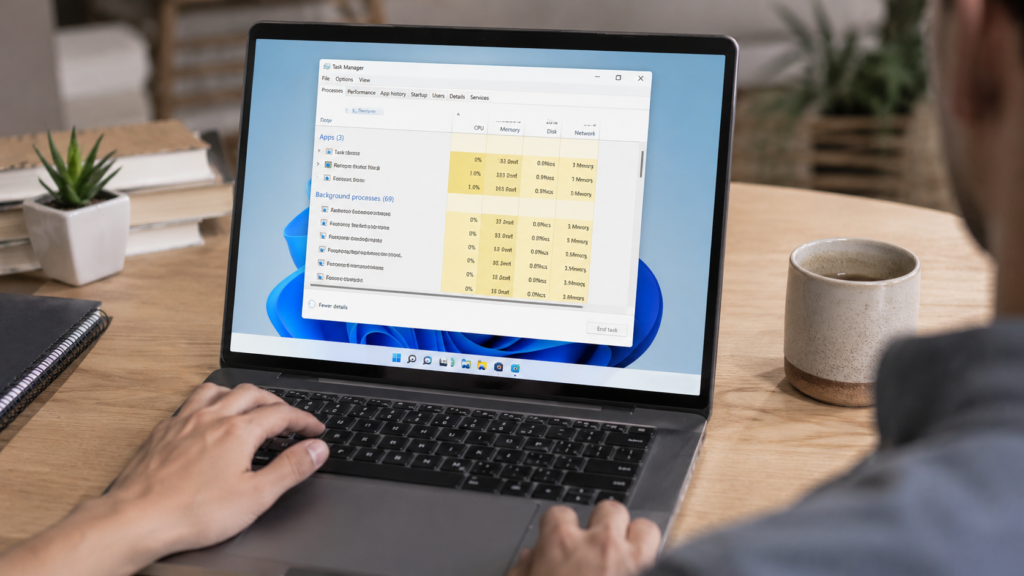
Task Manager is a built-in Windows utility that shows a real-time snapshot of everything currently running on your laptop. It displays active applications, background processes, CPU usage, memory consumption, disk activity, and network performance in one organized window. Anyone searching for how to open task manager in laptop usually wants to solve a specific problem, and understanding what this tool actually does makes each shortcut far more meaningful once the window finally opens.
Laptop users depend on Task Manager to close unresponsive programs, monitor performance during heavy multitasking, and manage startup applications that quietly slow down boot times. Because laptops often come with compact keyboards or keys arranged differently than desktop keyboards, having several reliable access methods becomes especially useful when troubleshooting away from home, at work, or while traveling with limited peripherals.
Using the Ctrl + Shift + Esc Shortcut
The fastest and most direct answer to how to open task manager in laptop is pressing Ctrl + Shift + Esc at the same time. This combination skips extra menus and security screens entirely, launching Task Manager instantly. It has become the go-to choice for most Windows 10 and Windows 11 users who want immediate access without any unnecessary steps standing between them and the information they need.
What makes this shortcut particularly valuable is how reliably it performs even when the rest of the system feels sluggish or delayed. Because it operates at a direct system level rather than through the interface, it frequently works during moderate freezes, giving you a fast way to identify whatever process is causing trouble and shut it down before the situation worsens further.
Trying Ctrl + Alt + Delete Instead
Another well-known option is pressing Ctrl + Alt + Delete together. Rather than opening Task Manager directly, this combination brings up a security screen offering several choices, including Lock, Switch User, Sign Out, and Task Manager itself. From that screen, simply click “Task Manager” and the familiar window will appear right away, ready for use.
This method proves especially useful when a laptop screen appears frozen or stops responding to normal clicks. Since it interrupts the current session at a deeper system level, it often succeeds in situations where a standard shortcut or mouse click fails completely. Many IT professionals recommend trying this approach first whenever a laptop seems locked or unusually unresponsive to input.
Right-Clicking the Taskbar
For anyone who prefers a touchpad or mouse over memorizing shortcuts, right-clicking an empty area of the taskbar at the bottom of the screen reveals a convenient context menu. Selecting “Task Manager” from that list opens it immediately, with no typing or key combinations required at all, making this one of the most beginner-friendly methods available.
This approach works almost identically across both Windows 10 and Windows 11, though the visual style of the menu differs slightly between the two versions. It remains an intuitive choice for users who feel less comfortable relying on keyboard commands and would rather access essential system tools through simple, familiar mouse clicks instead.
Opening the Quick Link Menu
Pressing Windows Key + X opens the Quick Link menu, a hidden power-user shortcut packed with useful system tools. Once the menu appears, pressing the T key jumps straight to Task Manager, or you can simply click it directly from the visible list using your cursor if you prefer a slower, more deliberate approach.
This method works particularly well for keyboard-focused users and anyone who values accessibility features, since it avoids depending on a mouse entirely. It also serves as a great backup option whenever the taskbar becomes hidden, glitches unexpectedly, or temporarily stops responding, giving users another dependable route into the same essential tool.
Searching Through the Start Menu
For beginners or anyone unfamiliar with keyboard shortcuts, the Start Menu search bar offers one of the simplest possible routes. Clicking the Start button or the search icon, typing “task manager,” and selecting the app icon from the results list opens the tool within seconds, without requiring any special key combinations to remember.
This method requires no memorization whatsoever and performs consistently across different Windows versions and laptop models. It works as a dependable fallback whenever a shortcut slips your mind, and it also helps confirm the application’s official name and icon, which can be useful for pinning it to the taskbar for future convenience.
Launching Task Manager With the Run Command
Power users and IT professionals often favor the Run command for its speed and precision. Pressing Windows Key + R opens the Run dialog box, and typing taskmgr followed by Enter launches Task Manager instantly, bypassing both the taskbar and Start Menu entirely for a quicker, more direct route to the tool.
This method proves particularly useful during troubleshooting sessions, especially when other parts of the interface, such as the taskbar, are not responding properly. It remains a lightweight, command-driven solution that experienced users often default to whenever they need quick, no-fuss access without navigating through several visual menus first.
Accessing It Without Ctrl + Alt + Delete
Some external or compact laptop keyboards lack a dedicated Delete key, making the classic Ctrl + Alt + Delete combination difficult or even impossible to execute. Fortunately, several alternatives already covered here, including Ctrl + Shift + Esc, right-clicking the taskbar, or using the Run command, all work perfectly well without requiring that specific key to be present.
These alternatives ensure that regardless of a keyboard’s layout or any missing keys, users can still reliably reach Task Manager whenever necessary. This flexibility matters most for people working on laptops with unconventional keyboard designs, external keyboards, or devices where certain function keys have been repurposed for other system controls.
Getting In When the Laptop Freezes
A frozen laptop can feel alarming, but there are usually still ways to regain control. Start with Ctrl + Shift + Esc, since this shortcut often succeeds even during partial freezes when other inputs seem unresponsive. If nothing happens after a few seconds, try Ctrl + Alt + Delete, which interrupts the system at a deeper level and frequently restores control when the first attempt does not.
If neither shortcut produces results after waiting roughly a minute, a forced restart may become necessary as a last resort. However, always attempt both keyboard shortcuts first, since forcing a shutdown can occasionally lead to unsaved work being lost or, in rare cases, minor system file complications that could have been avoided entirely.
What You Can Do Once It’s Open
Once Task Manager finally opens, unresponsive applications can be closed by selecting them under the “Processes” tab and clicking “End Task.” This is often the fastest fix for a frozen or lagging program, letting you avoid restarting the entire laptop just to resolve one misbehaving application running in the background.
Beyond simply closing programs, Task Manager allows real-time monitoring of CPU, memory, disk, and network usage, helping pinpoint exactly what is slowing the system down. Users can also manage startup programs through the “Startup” tab, disabling unnecessary applications to noticeably improve boot times and overall day-to-day laptop performance.
Fixing It When Task Manager Won’t Open
Occasionally, Task Manager may refuse to open due to administrative restrictions, a Group Policy setting, or a minor system glitch affecting normal functionality. When this happens, try running it as an administrator, or open Command Prompt and type “taskmgr” before pressing Enter to attempt an alternate launch route that bypasses the usual shortcuts.
If the problem continues, check the Group Policy Editor for restrictions that may be disabling Task Manager, since some workplace or shared laptops intentionally turn this feature off. Persistent issues unrelated to policy settings could indicate malware interference, making a full security scan a strongly recommended next step before trying anything else.
Read More: https://techustime.co.uk/how-to-cast-mobile-screen-on-laptop/
FAQs
How do I open Task Manager without Ctrl + Alt + Delete?
You can use Ctrl + Shift + Esc, right-click the taskbar, or open the Run dialog and type “taskmgr.” All three alternatives work smoothly without needing the Ctrl + Alt + Delete combination, making them ideal for keyboards missing a dedicated Delete key.
What should be open in Task Manager?
Task Manager typically displays active apps, background processes, and performance metrics like CPU, memory, disk, and network usage under separate tabs. Together, these give a complete overview of everything currently happening on a laptop at any given moment.
Can I turn off Task Manager?
Yes, administrators can disable Task Manager through Group Policy settings or the Registry Editor, often on shared or workplace laptops. Everyday users generally have no reason to disable it, since it plays such a useful troubleshooting role.
How do I force my laptop to open Task Manager?
Try Ctrl + Alt + Delete first, since it frequently works during freezes when other shortcuts fail. If that does not help, wait briefly and attempt Ctrl + Shift + Esc again, treating a forced restart only as an absolute last resort.
Is the Task Manager shortcut the same on Windows 10 and Windows 11?
Yes, Ctrl + Shift + Esc, Ctrl + Alt + Delete, and the Run command all function identically across both versions. The only real difference lies in the taskbar’s visual design, which varies slightly between the two operating systems.
Why won’t Task Manager open on my laptop?
Common causes include Group Policy restrictions, missing administrative permissions, or malware interference disrupting normal system behavior. Try running it as an administrator or through Command Prompt, and run a full security scan if the issue continues afterward.
Final Thoughts
Learning how to open task manager in laptop does not have to feel complicated, especially with six dependable methods readily available. Whether the preference leans toward the speed of Ctrl + Shift + Esc, the security screen route, a simple right-click, or the precision of the Run command, there is an option suited to nearly every situation and comfort level imaginable.
Keeping these methods in mind ensures nobody stays stuck the next time an app freezes or a laptop suddenly starts lagging. Bookmarking this guide means that whenever performance issues strike unexpectedly, the right shortcut is always within reach, whether the device runs Windows 10, Windows 11, or gets upgraded to a future version down the line.