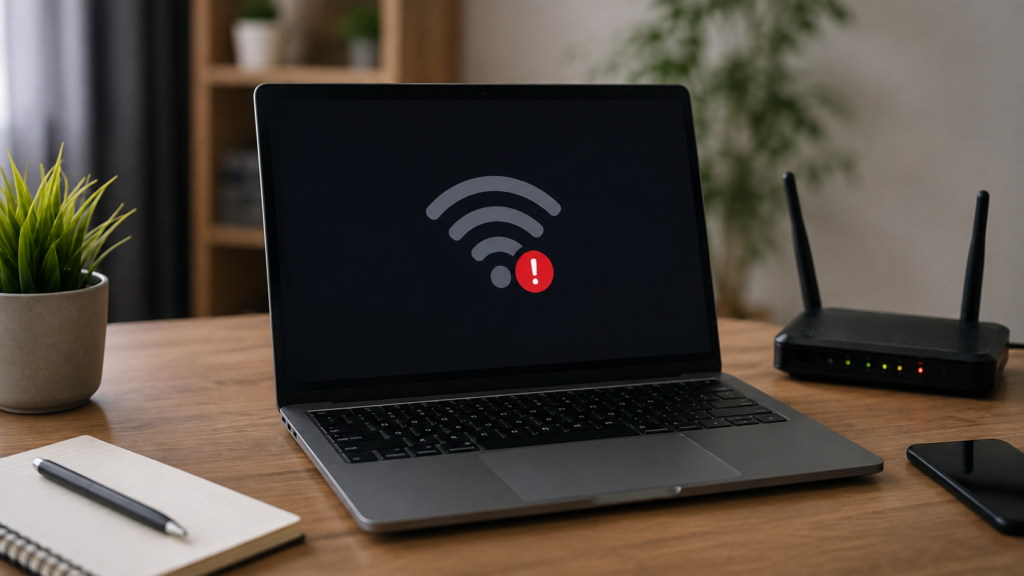

You’re halfway through a video call, a download, or an intense gaming session when the screen suddenly flashes “No Internet, Secured.” Moments later you’re back online, only for the same thing to happen again a few minutes later. If you’ve been asking yourself, “Why does my laptop keep disconnecting from Wi-Fi?” you’re dealing with one of the most common — and thankfully most fixable — problems laptop owners run into.
This guide breaks down exactly what causes these random WiFi drops, how to confirm what’s really going on with your machine, and seven practical fixes you can try today without needing any advanced technical background. Whether you’re running Windows 10 or Windows 11, these steps follow the same troubleshooting logic that IT professionals use, just explained in plain language so anyone can follow along and get their connection stable again.
Signs Your Laptop Has a WiFi Disconnection Problem
Before diving into fixes, it’s worth confirming you’re actually dealing with a disconnection issue rather than a simple slow-internet problem, since the solutions for each are quite different. Common symptoms include repeated “Limited Connectivity” warnings. This WiFi icon shows “connected” while the internet clearly isn’t working, or drops that seem to happen at oddly predictable intervals, such as every few minutes during normal use.
Another strong clue is that only your laptop keeps disconnecting from WiFi while every other device in the house — phones, tablets, smart TVs — stays perfectly connected without issue. This pattern usually means the problem lies specifically within your laptop’s settings or hardware rather than a router-wide outage, which immediately narrows where you should focus your troubleshooting efforts.
Common Causes Behind the Problem
There’s rarely a single universal answer to why my laptop keep disconnecting from wifi — it’s usually a combination of a few overlapping factors working against you. Understanding these root causes before attempting any fix makes the entire troubleshooting process faster, since you’ll be targeting the actual source of the problem instead of randomly changing settings and hoping something sticks.
Outdated or corrupted network drivers are consistently the number one culprit, especially right after a Windows update installs silently in the background. Power management settings come in a close second, since Windows frequently powers down the WiFi adapter to conserve battery life, which can trigger random disconnections without warning. Other frequent causes include router or modem malfunctions, conflicts between the 2.4GHz and 5GHz frequency bands, IPv6 compatibility issues, physical interference from nearby electronics, or a corrupted network profile that needs to be rebuilt from scratch.
How to Diagnose the Real Cause First
Jumping straight into fixes without a proper diagnosis often wastes time and can even introduce new issues. Start by opening Device Manager and checking whether your network adapter displays a yellow warning icon, since that’s usually a clear sign of a driver conflict. Running the built-in Windows Network Troubleshooter is another quick step that can automatically catch obvious misconfigurations you might otherwise miss entirely.
From there, test whether other devices connected to the same network experience the same dropouts. If they don’t, you can be fairly confident the issue is isolated to your laptop rather than your router or internet provider. For a more advanced diagnosis, Event Viewer logs can reveal the exact timestamps and error codes tied to each disconnection. At the same time, a free WiFi analyzer app can confirm whether weak signal strength or channel congestion is contributing to the problem.
7 Fixes That Actually Work
Once you have a reasonable idea of what’s causing the disconnections, work through these fixes in order, since most users resolve the issue within the first two or three attempts without needing to go any further down the list.
Start by updating or reinstalling your Wi-Fi network driver in Device Manager by right-clicking the adapter and selecting “Update Driver.” If Windows doesn’t automatically find a newer version, visit your laptop manufacturer’s website directly, since official downloads are often more up to date than what Windows Update provides. Next, turn off power management for the adapter by opening its Properties, clicking the Power Management tab, and unchecking the option that allows Windows to turn it off to save power — this single change resolves a surprisingly large share of complaints.
If those two steps don’t fully resolve the issue, try switching between the 2.4GHz and 5GHz frequency bands if your router supports both, since one may perform more reliably with your specific laptop model. Turning off IPv6 through your network adapter’s properties can also help, as incomplete ISP support for the protocol is a known source of intermittent drops. A full network reset through Windows Settings clears out corrupted profiles entirely, though you’ll need to re-enter your WiFi password afterward. Finally, updating your router’s firmware, restarting your equipment, and switching to a less congested WiFi channel round out the remaining fixes worth trying.
When the Problem Might Be Hardware
If you’ve worked through every fix above and your laptop still keeps disconnecting from WiFi, it’s worth considering that the internal adapter itself may be failing rather than a software setting being misconfigured. Persistent, unpredictable drops that continue despite fresh drivers, disabled power management, and a stable, well-positioned router are red flags that shouldn’t be ignored or endlessly troubleshot with more software tweaks.
A simple and effective test is plugging in an external USB WiFi adapter to see whether the connection suddenly becomes stable. If it does, that strongly confirms your internal adapter is the source of the problem. At this stage, contacting your laptop manufacturer’s support team is the most sensible next step, particularly if your device is still under warranty and eligible for a free repair or replacement part.
Preventing Future WiFi Disconnections
Preventing the problem from returning is far easier than repeatedly troubleshooting it after the fact. Make a habit of keeping both your Windows operating system and network drivers up to date regularly, since manufacturers frequently release patches that address known connectivity bugs affecting laptops like yours. It also helps to avoid overloading your router with too many devices connected simultaneously and to restart your router and laptop periodically so that temporary glitches don’t accumulate over time.
Positioning your router centrally in your home, away from thick walls, microwaves, or other electronics that generate interference, can noticeably reduce the odds of your laptop disconnecting from WiFi and of problems resurfacing down the line. For larger homes or offices, investing in a WiFi mesh system or a signal extender can eliminate dead zones, which are often the underlying cause of sporadic drop-offs with no obvious pattern or trigger.
Read More: https://techustime.co.uk/how-to-transfer-photos-from-iphone-to-laptop/
FAQs
Why does my laptop keep disconnecting from WiFi but other devices stay connected?
This pattern usually points to a laptop-specific issue rather than a router-wide problem, most commonly an outdated network driver or a power management setting that quietly turns the adapter off to conserve battery life during idle periods.
Why does my laptop keep disconnecting from WiFi every few minutes?
Frequent, regularly timed disconnections are often tied to power-saving settings or interference on a congested WiFi channel. Disabling adapter power management and switching to a clearer channel typically resolves this specific pattern within minutes.
How do I stop my laptop from disconnecting from WiFi on Windows 11?
Begin by updating your network driver, disabling power management for the adapter, and running a full network reset if problems persist afterward. These three steps together resolve the vast majority of Windows 11 disconnection complaints.
Does resetting network settings delete my saved WiFi passwords?
Yes, a full network reset removes all saved WiFi profiles and stored passwords, meaning you’ll need to reconnect and manually re-enter your network password afterward. However, it frequently resolves otherwise stubborn connectivity problems for good.
Can a router cause my laptop to disconnect even if other devices work fine?
Yes, band- or channel-specific compatibility issues can affect a single device. In contrast, every other device remains perfectly stable, especially if your particular laptop’s adapter struggles with 5GHz signals or a heavily congested WiFi channel.
How do I know if my WiFi adapter is failing and needs replacement?
If disconnections persist despite updated drivers, disabled power management, and a stable router, and an external USB WiFi adapter immediately resolves the problem, your internal adapter is almost certainly failing and needs replacement soon.
Final Thoughts
WiFi disconnection issues are undeniably frustrating, but as this guide demonstrates, they’re rarely as mysterious as they first appear once you understand the handful of common causes behind them. Whether the honest answer to why does my laptop keep disconnecting from wifi turns out to be an outdated driver, an overly aggressive power setting, or simple router interference, working through these seven fixes in order will resolve the issue for the overwhelming majority of everyday users.
If none of these steps bring lasting stability, don’t rule out a hardware fault, since testing with an external adapter is one of the fastest ways to confirm it conclusively. Keep this guide handy for future reference, and consider sharing it with anyone else who mentions their laptop keeps disconnecting from WiFi at unpredictable moments throughout the day.