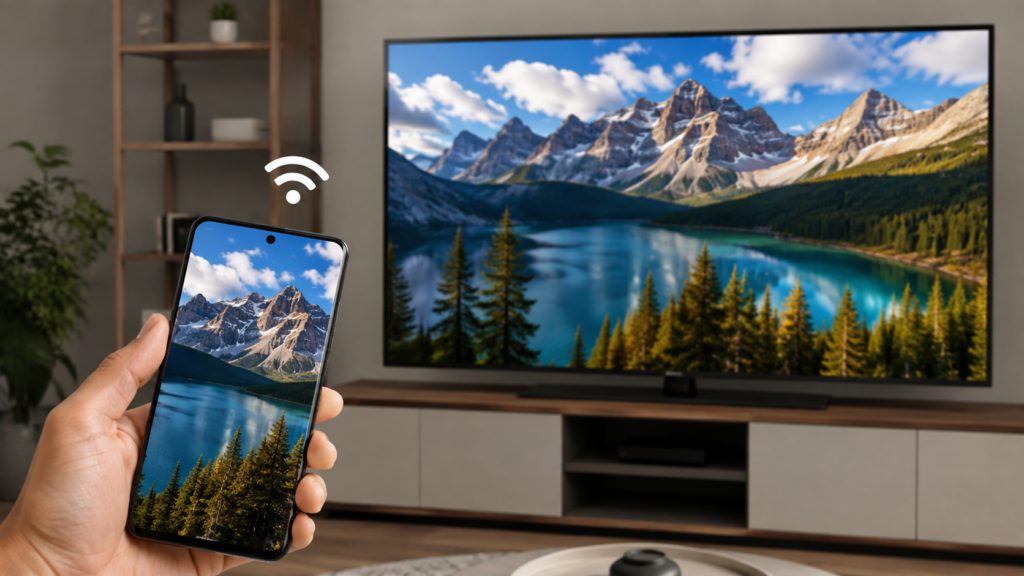

Streaming a favourite show, sharing vacation photos, or presenting a slideshow instantly feels better on a bigger screen. That’s exactly why so many people search for how to connect Samsung smartphone to Samsung TV — it transforms a small handheld display into a full home entertainment setup within seconds, without requiring extra cables, technical knowledge, or a complicated configuration process that eats into your evening.
Samsung has engineered its devices to communicate effortlessly with one another. Whether you own a Galaxy phone or a Samsung Smart TV, the ecosystem is built so screen mirroring, casting, and remote control all happen with minimal friction. This guide walks through every practical method available today, from wireless mirroring to wired HDMI setups, along with troubleshooting advice for when the connection doesn’t behave as expected.
Understanding these connection options isn’t just about convenience — it’s about getting more value from devices you already own. Once you know how to connect Samsung smartphone to Samsung TV, you unlock a range of everyday uses, from casual family movie nights to professional presentations, without needing to buy additional streaming hardware or subscribe to another service to share your screen.
What You Need Before Getting Started
Before diving into how to connect Samsung smartphone to Samsung TV, it helps to confirm your devices meet a few basic requirements. You’ll need a Samsung Smart TV, since most models released from 2018 onward support built-in screen mirroring, along with a Samsung Galaxy phone running a reasonably current version of One UI. Both devices should also be connected to the same Wi-Fi network for any wireless method to function properly and detect each other automatically.
If you’re planning to use the SmartThings app for a more feature-rich experience, download it in advance from the Google Play Store and sign in using your Samsung account credentials. For those who prefer a wired connection, you’ll also need a USB-C-to-HDMI adapter compatible with your specific phone model, since not every Galaxy device supports video output via its USB-C port by default.
Taking a few minutes to double-check these prerequisites can save considerable frustration later. Many connection failures trace back not to a broken feature but to something as simple as mismatched Wi-Fi networks, outdated software, or an incompatible adapter — issues that are easy to prevent once you know what to look for before attempting the setup.
Connecting via Smart View Screen Mirroring
Smart View is Samsung’s built-in screen mirroring tool and remains the fastest way to project your phone’s display onto your television. Swipe down from the top of your screen to open Quick Settings, tap the Smart View or Screen Mirroring icon, and wait a few seconds while your phone scans the network for compatible nearby displays, including any Samsung Smart TV within range.
Once your television appears in the list of available devices, tap it to begin the connection process. Your TV screen will display a confirmation prompt — accept it, and your phone’s screen will mirror instantly onto the larger display. This particular method for how to connect Samsung smartphone to Samsung TV works especially well for casting photos, browsing the web on a bigger screen, or sharing a presentation with a room full of people.
Smart View is best suited for shorter, temporary mirroring sessions rather than extended binge-watching marathons, since continuous mirroring tends to drain your phone’s battery more quickly and can occasionally introduce slight lag depending on your household’s network speed and the number of devices sharing bandwidth at the same time.
Using the SmartThings App for Deeper Control
For a more integrated and flexible experience, the SmartThings app offers far more than basic mirroring capabilities. After installing the app and linking both your phone and television to the same Samsung account, open SmartThings and tap on your registered TV under the Devices tab to access mirroring, casting, and remote control options all in one convenient place.
From within the app, you can select “View TV on Phone” to preview what’s currently playing, or use the built-in mirroring shortcut to cast your entire screen directly. SmartThings also lets you adjust TV settings, volume levels, and input sources straight from your phone, making it a considerably more powerful hub than Smart View alone — particularly useful if you’re already managing other connected smart-home devices through the same app.
Because SmartThings centralises multiple smart devices into a single interface, it’s often the better long-term choice for households with multiple Samsung products. Rather than switching between separate apps for your TV, soundbar, or smart appliances, you can access everything from a single dashboard, streamlining daily use well beyond simple screen-mirroring tasks.
Setting Up a Wired HDMI Connection
If your Wi-Fi network is unreliable or you prefer a lag-free connection, wired HDMI remains a dependable fallback option. You’ll need a USB-C to HDMI adapter, or, in some cases, a direct USB-C to HDMI cable, depending on your phone model, to connect your Galaxy device to an available HDMI port on your Samsung television.
Once everything is plugged in, switch your TV’s input source to match the correct HDMI port, and your phone’s screen should appear automatically without any additional pairing steps. This wired approach to how to connect Samsung smartphone to Samsung TV is particularly useful for gaming, watching downloaded videos without buffering interruptions, or situations where public or unstable Wi-Fi networks make wireless mirroring unreliable or even a security concern.
The main trade-off with a wired setup is reduced convenience, since you lose the freedom to move freely around the room while mirroring is active. It’s also worth noting that not every Galaxy phone supports video-out through its USB-C port, so checking your specific model’s technical specifications beforehand can prevent an unnecessary trip back to the store.
Instant Mirroring With Tap View
Tap View is one of Samsung’s more recent and convenient features, designed specifically for near-instant mirroring without navigating through multiple settings menus. After enabling Tap View in the SmartThings app settings, hold your phone close to, or gently tap it against, your Samsung television, and the mirroring connection activates automatically within a couple of seconds.
This feature performs best on newer Samsung TV models paired with recently released Galaxy phones. It’s particularly handy for quickly sharing a single photo or short video clip without going through the full Smart View setup every time, making the overall experience of connecting feel almost effortless once it’s properly configured on both devices.
Tap View essentially removes the friction of repeated manual setup, making it a favourite among households that frequently mirror their screens throughout the week. Rather than treating each connection as a fresh setup, Tap View turns the process into a habitual, near-instant action — closer to unlocking a phone than configuring a device pairing from scratch.
Fixing Common Connection Problems
Even with a fairly straightforward process, connection issues do occasionally arise. The most frequent culprit is a Wi-Fi band mismatch, since many routers broadcast both 2.4GHz and 5GHz bands simultaneously, and your phone and TV generally need to be on the same band for mirroring to detect each other reliably and establish a stable link.
If your television isn’t showing up in the list of available devices, try restarting both the router and the TV, and confirm that your phone’s software along with the TV’s firmware are fully updated. Outdated firmware is a surprisingly common reason screen mirroring fails or behaves unpredictably, especially shortly after a major app update or operating system upgrade on either connected device.
Laggy, choppy, or freezing mirroring sessions usually point toward network congestion rather than a hardware fault. Reducing the number of devices actively using your Wi-Fi network, moving your phone and TV closer to the router, or temporarily turning off a VPN connection can often resolve performance issues almost immediately, restoring a smooth and stable mirroring experience.
Getting the Best Mirroring Performance
To achieve the smoothest possible experience when connecting your Samsung smartphone to your Samsung TV, try positioning both devices as close to your router as reasonably possible, especially during longer mirroring sessions such as movie nights or extended gaming sessions where consistent bandwidth genuinely matters for picture quality and responsiveness.
Whenever it’s available, prioritise the 5GHz Wi-Fi band over the more crowded 2.4GHz band, since it typically offers significantly better speeds for video streaming with noticeably less interference from neighbouring networks and household devices. Closing unused background apps on your phone before starting a mirroring session also frees up valuable processing power, helping maintain a stable, uninterrupted connection throughout the session.
It’s also worth periodically restarting both your router and your Samsung TV, even when nothing appears to be malfunctioning. Routers in particular can accumulate minor performance issues over extended periods of continuous use, and a simple restart every few weeks often resolves subtle connectivity slowdowns before they become noticeable enough to disrupt your mirroring sessions.
Casting Content Without Full Screen Mirroring
Not every situation actually calls for full-screen mirroring. Many popular apps, including YouTube, Netflix, and Spotify, come with built-in Cast buttons that stream content directly to your Samsung TV without mirroring your entire phone screen. This approach also tends to consume noticeably less battery and bandwidth than continuous full-screen mirroring over an extended session.
App-based casting is generally smoother for streaming, since it sends a direct, optimised video stream rather than continuously replicating your phone’s entire display in real time. It’s worth reserving full mirroring specifically for situations like presentations, photo sharing, or apps that don’t offer native casting support, while relying on built-in Cast features for everyday streaming whenever that option is readily available.
Read More: https://techustime.co.uk/when-was-the-first-touchscreen-smartphone-made/
FAQs
Why can’t my Samsung phone find my Samsung TV for screen mirroring?
This typically happens when your phone and TV are connected to different Wi-Fi bands, such as 2.4 GHz and 5 GHz. Make sure both devices share the same network band, and confirm that neither device is running outdated software that could interfere with proper device discovery.
Do I need Wi-Fi to connect my Samsung phone to my Samsung TV?
Wi-Fi is required for wireless methods like Smart View and SmartThings. If you don’t have access to a stable network, you can rely on a wired HDMI connection via a USB-C-to-HDMI adapter for a direct, network-independent setup.
Can I connect a non-Samsung phone to a Samsung TV?
Yes, many Android phones support Smart View-style mirroring through their built-in casting features, though the overall experience is most seamless when connecting two Samsung devices. iPhone users typically need a dedicated mirroring app or a wired adapter instead.
What is the difference between Smart View and SmartThings?
Smart View is a simple, quick mirroring tool built directly into Quick Settings. At the same time, SmartThings is a broader smart-home app that also offers TV control, device management, and additional casting features that go well beyond basic screen mirroring.
Why does my screen mirroring lag or freeze?
Lagging is typically caused by weak Wi-Fi signal strength or general network congestion. Try moving closer to your router, switching to the 5GHz band, or closing other apps and devices that are competing for bandwidth on the same shared network.
Can I mirror my phone to an older Samsung TV model?
\Most Samsung Smart TVs released from around 2018 onward support built-in screen mirroring features. Older or non-smart models may lack this native support, in which case a wired HDMI connection usually becomes the more reliable and practical option.
How do I disconnect my phone from the Samsung TV?
Open the Quick Settings panel on your phone, tap the Smart View or Screen Mirroring icon again, and select Disconnect. Alternatively, simply turning off either connected device will automatically end the active mirroring session.
Final Thoughts
Learning how to connect Samsung smartphone to Samsung TV opens up a genuinely wide range of everyday possibilities, from casual movie nights to seamless business presentations. Whether you choose Smart View for quick wireless mirroring, SmartThings for deeper device control, a wired HDMI setup for maximum stability, or Tap View for near-instant connections, Samsung has made this process accessible across nearly every recent device in its lineup.
If you run into hiccups along the way, most issues stem from Wi-Fi band mismatches or outdated software, both of which are easily fixed with the troubleshooting tips outlined above. Try the wireless method first for everyday convenience, and keep a wired HDMI connection as your reliable backup whenever a stable, lag-free experience matters most for gaming or important presentations.