
If your laptop takes three minutes to boot and freezes when you open a second browser tab, here’s the good news: most of the time, you don’t need a new machine. Learning how to fix slow laptop problems is mostly about finding what’s actually dragging the machine down — and that’s usually software, not dead hardware.
The pattern is almost always the same: too many programs launching at boot, a drive that’s 95% full, and a browser with 40 tabs eating all the RAM. Below are the 12 fixes that actually move the needle, from “do this right now” to “spend a little money.”
First, Find the Real Bottleneck (5 Minutes)
Before touching anything, open Task Manager (Ctrl + Shift + Esc) and click the Performance tab:
- CPU near 100%? Some process is hogging the processor — usually fixable below.
- Memory above 85%? You’re out of RAM, or a memory leak is building up.
- Disk stuck at 100%? The classic sign of a dying or full hard drive on older laptops.
Open the Processes tab, sort by CPU or Memory, and note the top three names. The same app eating 30%+ every time you check is your culprit.
12 Fixes That Actually Speed Up a Slow Laptop
1. Do a Proper Restart (Not Shutdown)
Since Windows 8, Shutdown doesn’t fully shut the system down — Fast Startup saves a snapshot, so stuck drivers and leaked memory survive “shutdowns.” Hit Restart instead for a genuine full reboot; it alone has rescued laptops after weeks of uptime.
2. Kill Programs That Launch at Boot
Every app that starts with Windows steals CPU and RAM before you’ve done a single thing. In Task Manager’s Startup apps tab, check the “Startup impact” column. Anything rated Medium or High that you don’t need instantly — Spotify, Steam, Adobe updaters, manufacturer utilities — select it and click Disable. Keep antivirus and audio drivers on; kill the rest. Reboot and feel the difference at login.
3. End Resource Hogs in the Background
In the Processes tab, look for anything eating big chunks of CPU, memory, or disk that you don’t need right now. Common offenders: updaters (Adobe, Chrome, game launchers), cloud sync tools grinding through giant folders, browser helper processes gone rogue. Select and End task. Leave “Windows processes” alone unless you know what they are.
4. Free Up Disk Space — Get Below 80% Full
When a drive passes ~80–85% full, everything slows down: virtual memory, update staging, even basic file operations. Turn on Storage Sense (Settings → System → Storage), empty Downloads and the Recycle Bin, and uninstall anything unused for six months. Aim for 15–20 GB free on the system drive.
5. Remove the Bloatware It Shipped With
New Dell, HP, Lenovo, and ASUS laptops arrive loaded with trial antivirus, duplicate media apps, and manufacturer “utilities” that only phone home. Remove anything you didn’t choose via Settings → Apps → Installed apps. This is often the biggest win on a one- or two-year-old machine.
6. Scan for Malware (Don’t Skip This)
Crypto miners, adware, and hijackers hide by design — their business model is burning your CPU in the background. Run a full scan with Windows Security; if things still look odd, Malwarebytes’ free scanner is a solid second opinion. A sudden slowdown with no obvious cause is malware until proven otherwise.
7. Install Every Pending Update
Old GPU and chipset drivers cause stuttering, and Windows updates frequently fix performance regressions. Go to Settings → Windows Update, install everything including optional drivers under “Advanced options,” then reboot properly (see fix #1).
8. Switch to High Performance Power Mode
Windows throttles your processor to save battery — even on machines plugged into the wall. Open Settings → System → Power & battery and set Power mode to Best performance when plugged in (Windows 11), or pick the High performance plan in Control Panel power options (Windows 10). A mid-range laptop can feel noticeably snappier during heavy work from this alone.
9. Turn Off the Visual Eye Candy
Windows 11’s animations, transparency, and shadows cost GPU cycles — real cost on older integrated graphics. Search “Adjust the appearance and performance of Windows,” open it, and choose Adjust for best performance. The interface gets plainer; the machine gets faster. Fair trade.
10. Tame Your Browser
For many people, “my laptop is slow” really means “my browser is slow.” Chrome and Edge will eat 4 GB of RAM with 30 tabs open. Audit extensions (chrome://extensions) and remove anything unrecognized or unused — rogue extensions are a classic hidden cause. Turn on Memory Saver (Settings → Performance in Chrome/Edge) so inactive tabs sleep. Fifty-tab people: bookmark them and close the window.
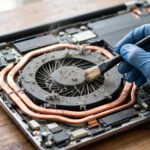
11. Clean Out Dust — Heat Makes Laptops Slow Themselves Down
When dust clogs the cooling vents, the processor overheats and deliberately slows itself down to avoid damage — thermal throttling — which feels exactly like a “slow laptop.” Blow out the vents with short bursts of compressed air (machine off). For a deeper clean, here’s how to clean your laptop fan safely — easier than it sounds, and it can drop temperatures 10–15°C. While you’re at it, clean your laptop screen properly too.
12. The Hardware Options: SSD and RAM
Done everything above and it’s still slow? You’re at a hardware wall:
- Still on a spinning hard drive? An SSD is the single biggest speed boost for an old laptop — boot times typically drop from 2–3 minutes to under 30 seconds, and a 500 GB SATA SSD runs about $35–45.
- Only 4–8 GB of RAM? If Task Manager shows memory constantly above 80%, more RAM helps — 16 GB is the sweet spot in 2026. Check your manual first; some ultrabooks have soldered RAM.
A fraction of a new laptop’s price, and it can add 2–3 years of usable life to a 2019–2021 machine.
How to Fix Slow Laptop on Windows 11 Specifically
- Disable Widgets and Teams Chat if you don’t use them — both run background processes (right-click taskbar → Taskbar settings).
- Turn off “Startup boost” for Edge unless Edge is your main browser (Edge Settings → System and performance).
- Use Efficiency mode in Task Manager (right-click a heavy process → Efficiency mode) to throttle background apps you can’t uninstall.
Still Slow? Do a Clean Windows Install
When nothing else works, a fresh install resets years of accumulated cruft — broken registry entries, half-uninstalled drivers, conflicting software. Back up your files, then go to Settings → System → Recovery → Reset this PC, choose “Remove everything” with the cloud download option. About an hour later, laptops that felt five years old routinely feel new. If a clean install still doesn’t fix it, you’re looking at failing hardware or a machine too old for modern software.
FAQ
Why is my laptop so slow all of a sudden?
A sudden slowdown means something specific changed: a Windows update installing in the background, a new startup program, malware, or a drive that just crossed the “nearly full” threshold. Check Task Manager’s Performance tab first — disk at 100% on an HDD almost always means the drive is dying or full.
Does adding more RAM make a laptop faster?
Only if RAM is the bottleneck. If memory usage regularly sits above 80–85% during normal work, more RAM genuinely helps. If it stays around 50–60%, extra RAM changes almost nothing — look at startup programs and disk space instead.
Can dust really make my laptop slow?
Indirectly, yes. Dust blocks airflow, the CPU overheats, and it throttles itself to lower speeds to stay safe — a dust-clogged laptop can run 20–30% slower than when clean.
Is Windows 11 slower than Windows 10 on old laptops?
On hardware from 2018 or earlier, Windows 11 can feel slightly heavier. Disabling animations, Widgets, and unnecessary startup apps usually closes the gap. With an SSD and 8 GB+ of RAM, the difference is negligible.
How do I know if I need an SSD upgrade?
Task Manager → Performance → Disk. If the type says HDD and “Active time” frequently hits 100% during normal use, an SSD upgrade will transform the machine. It’s the highest-value upgrade in laptop repair.
Conclusion
Fixing a slow laptop is methodical, not mysterious. A proper restart, trimming startup programs, freeing disk space, and a malware scan solve it for most people in under an hour. Still dragging? An SSD upgrade or a clean Windows install finishes the job. Only when none of that works should you start shopping for a replacement.