
Moving pictures off an iPhone sounds like it should take seconds, yet so many people end up stuck with a stalled cable connection, a folder of files that refuse to open, or a transfer that mysteriously stops halfway through. If you’ve searched for how to transfer photos from iPhone to laptop and felt overwhelmed by conflicting advice, this guide clears things up. Below are six free, reliable methods that work in 2026, along with practical fixes for the problems that trip up most users.
Whether you’re on Windows or Mac, new to Apple devices, or simply tired of paying for cloud storage you barely use, there’s a method here suited to your situation. Each approach is explained step by step, so you can pick the one that matches your photo library size, your device type, and how much patience you have for cables versus wireless syncing.
Getting Ready Before You Transfer
Before you attempt to transfer photos from an iPhone to a laptop, take a moment to update both devices to the latest software versions. Outdated iOS builds or an aging version of Windows are among the most common reasons a transfer stalls, freezes, or fails to recognize the device in the first place. A two-minute software check now can prevent a much longer troubleshooting session later, especially if you’re planning to move a large photo library in one sitting.
It also helps to understand the HEIC versus JPG format issue before you begin. iPhones save images in HEIC format by default, and while this saves storage space on your phone, some Windows systems can’t open these files without an additional codec installed. Knowing this ahead of time lets you choose the right transfer method and avoid the common frustration of photos that won’t display once they land on your laptop.
Using a USB Cable on Windows
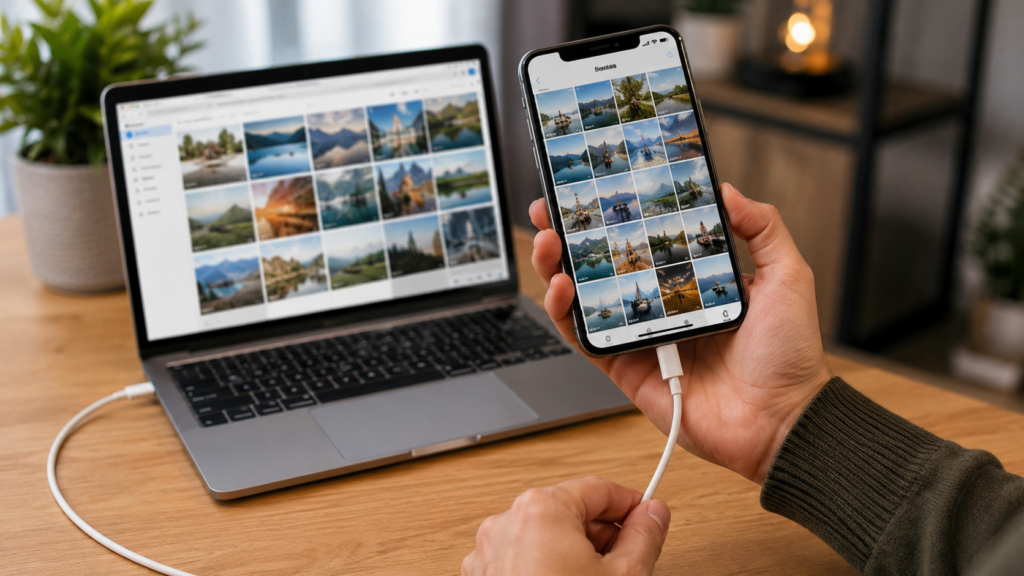
The USB method remains one of the most dependable ways to transfer photos from iPhone to laptop, particularly for users moving large batches at once. Connect your iPhone to your Windows laptop with a certified cable, unlock the screen, and tap “Trust This Computer” as soon as the prompt appears. From there, open File Explorer or the Photos app, locate your device, and begin importing images directly into a folder of your choice.
If you notice that only a portion of your photos actually transferred, you’re experiencing one of the most commonly reported issues with this method, especially in libraries containing a thousand images or more. Breaking the transfer into smaller batches of roughly 100 to 200 photos at a time dramatically reduces connection drops and incomplete imports, making the entire process far more reliable than attempting everything in a single pass.
To resolve HEIC compatibility issues on Windows, install the free HEVC Video Extension from the Microsoft Store. This small addition allows your laptop to properly display, open, and convert HEIC images to standard JPG format, solving one of the most frequent complaints among people trying to transfer photos from an iPhone to a laptop for the very first time.
Using a USB Cable on Mac
Mac users typically enjoy a smoother experience with this process, since macOS natively supports the HEIC format without requiring any extra downloads or extensions. Connect your iPhone with a Lightning or USB-C cable, open the Photos app, and select the specific images you’d like to import. Alternatively, Finder offers a straightforward drag-and-drop option for anyone who prefers to organize files as they move them manually.
If your Mac fails to recognize the connected iPhone, try switching to a different cable or USB port, restarting both devices, and confirming that you’ve tapped “Trust” on your iPhone’s screen when prompted. These simple steps resolve the vast majority of connection issues Mac users encounter, and they take only a minute or two to work through before you need to consider more advanced troubleshooting.
Wireless Transfer With Windows 11 Phone Link
For anyone who would rather skip cables altogether, Windows 11’s built-in Phone Link feature offers a genuinely free wireless alternative. After pairing your iPhone and laptop via Bluetooth and a shared Wi-Fi connection, you can browse your camera roll and transfer selected photos directly to your laptop without plugging in a physical cord, making it a convenient option for quick, everyday transfers.
This wireless method works best for smaller, more targeted transfers rather than moving an entire photo library at once, since wireless speeds are naturally slower than a direct USB connection. It’s an especially useful option when you need to quickly grab a handful of recent photos, without digging through drawers for a cable or interrupting whatever else you’re doing on your laptop.
Using AirDrop on a Mac
AirDrop remains the fastest way to transfer photos from an iPhone to a laptop when both devices are in the Apple ecosystem. With Wi-Fi and Bluetooth enabled on both the iPhone and the Mac, sending photos takes only seconds, requiring no cables, no cloud accounts, and no third-party software installations, making it a favorite among users who value speed and simplicity above all else.
To use it, select the photos you want on your iPhone, tap the Share icon, choose AirDrop, and pick your Mac from the list of nearby devices. This method is particularly convenient for photographers, content creators, or anyone regularly moving large batches of images between Apple devices, since it consistently outperforms other wireless options in both speed and reliability.
Cloud-Based Transfer Options
Cloud syncing through services like iCloud, Google Photos, or OneDrive offers a popular alternative for people who want ongoing backups rather than a single, one-time transfer. Each of these platforms provides a free storage tier. However, the limits vary considerably, and heavy photographers or frequent iPhone users often find themselves needing to purchase additional storage sooner than expected.
A common complaint seen across online forums involves paying for cloud storage that ultimately goes unused. If your goal is simply an occasional transfer of photos from iPhone to laptop rather than continuous backup, a cloud subscription may be more than you actually need, so it’s worth weighing your habits carefully before committing to any paid storage plan.
Free Third-Party Transfer Tools
Many users specifically search for ways to move photos without relying on iTunes, citing its clunky interface and frequent syncing errors as major frustrations. Fortunately, several free and reputable third-party tools now exist that offer simple drag-and-drop functionality, letting you transfer photos from iPhone to laptop without needing to sign into an Apple account or navigate confusing software menus.
Before downloading any third-party application, take a moment to verify its legitimacy by reading user reviews and visiting the developer’s official website. Avoid tools that come bundled with excessive advertisements or request unclear permissions, since these can introduce privacy risks despite promising a faster or more convenient transfer experience than the built-in options.
Choosing the Right Method for Your Needs
If you’re regularly transferring hundreds of photos at once, a USB cable remains the most reliable choice for both Windows and Mac users, offering consistent speed without depending on a stable wireless connection. For quicker, less frequent transfers, wireless tools like Phone Link or AirDrop save valuable time and eliminate the hassle of finding a cable every time you need to move a handful of images.
Ultimately, the best way to transfer photos from iPhone to laptop depends on your specific device combination, the size of your photo library, and whether you personally value speed, convenience, or long-term automatic backup. Testing two different methods side by side often reveals which one best fits your day-to-day workflow, rather than relying on guesswork or generic advice.
Fixing Common Transfer Problems
Most transfer issues stem from simple, easily fixable causes rather than deeper technical faults. If your iPhone isn’t being detected at all, try switching to a different cable, restarting both devices, or updating your USB drivers through Windows. Partial transfers are almost always resolved by working in smaller batches rather than attempting to move an entire camera roll in a single, uninterrupted session.
HEIC files that refuse to open on a Windows laptop almost always require the HEVC extension mentioned earlier in this guide. If your transfer freezes or crashes unexpectedly, closing unnecessary background applications and confirming you have sufficient free storage space on your laptop typically resolves the problem before you need to attempt the transfer again from scratch.
Organizing Your Photos After the Transfer
Once your images have successfully transferred, take the time to organize them into clearly labeled folders, sorted by date, event, or subject, to avoid future clutter. Removing duplicate images with a free duplicate-finder tool also keeps your laptop’s storage tidy and considerably easier to search through later, especially if you’re managing years of accumulated photos from multiple devices.
Before deleting anything from your iPhone, double-check that every photo transferred correctly and opens without error. Consider backing up the newly created folder to an external hard drive or a secondary cloud account for extra peace of mind, particularly if the images hold sentimental or professional value you wouldn’t want to risk losing.
Read More: https://techustime.co.uk/how-to-connect-airpods-to-laptop/
FAQs
How do I transfer photos from iPhone to laptop without iTunes?
Use File Explorer or the Photos app via a USB connection, or try a free third-party tool designed to bypass iTunes altogether.
Why are only some of my photos transferring from iPhone to PC?
This typically happens with large photo libraries. Transferring in smaller batches of 100-200 photos helps prevent connection drops and incomplete results.
How do I transfer HEIC photos to a Windows laptop so I can view them?
Install the free HEVC Video Extension from the Microsoft Store, which lets Windows display and convert HEIC files automatically during import.
Can I transfer photos from iPhone to laptop wirelessly for free?
Yes. Windows 11’s Phone Link and Mac’s AirDrop both provide genuinely free wireless transfers without requiring cables or paid applications.
What is the fastest way to transfer a large number of photos from iPhone to laptop?
A USB cable connection remains the fastest and most reliable method for bulk photo libraries on both Windows and Mac systems.
Does transferring photos delete them from my iPhone?
No. Standard transfer methods copy your photos rather than moving them, so originals stay on your iPhone unless you delete them yourself.
How do I transfer photos from an iPhone to a Windows 11 laptop?
Use the built-in Photos app for USB imports, or try Phone Link for a wireless transfer option designed specifically for Windows 11.
Is it safe to use third-party software to transfer iPhone photos?
Yes, as long as you choose well-reviewed, reputable tools and avoid any software bundled with excessive ads or unclear data permissions.
Final Thoughts
Learning how to transfer photos from iPhone to laptop doesn’t require expensive software, technical expertise, or complicated workarounds. Between USB cables, wireless tools like Phone Link and AirDrop, cloud syncing services, and trustworthy free apps, there’s a method suited to virtually every need and budget in 2026. Choose the option that best matches your photo volume and device setup, and you’ll sidestep the frustrations so frequently reported by users online.