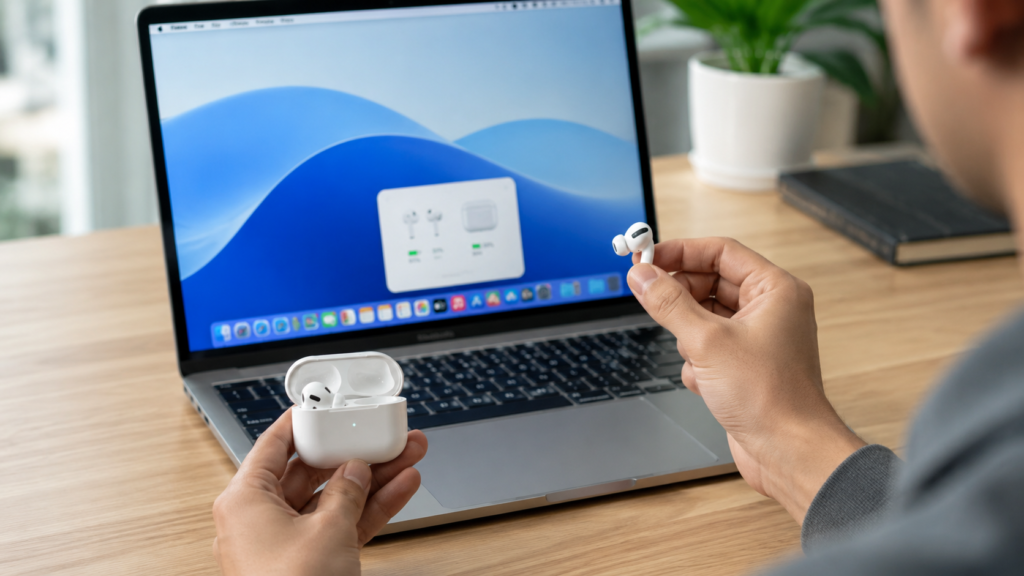

AirPods were designed with the iPhone in mind, but their real value shows once you realize they work just as well with a laptop. Whether you’re joining a video call, listening to music while you work, or watching a show during a break, knowing how to connect AirPods to laptop gives you a wireless, comfortable listening experience without being tied to your phone. It’s a small setup step that makes a noticeable difference in your daily routine.
The process itself is simple because AirPods use standard Bluetooth technology, which nearly every modern laptop supports. This means you’re not limited to Apple devices — both Windows and Mac laptops can pair with AirPods in under a minute once you understand the correct sequence. This guide walks through every step clearly, along with fixes for common issues you might run into along the way.
What You Need Before Pairing
Before attempting to connect your AirPods, a little preparation saves you time and frustration later. Start by confirming your laptop has Bluetooth, either built in or through a plug-in USB adapter. Most laptops manufactured in recent years include Bluetooth by default, but older machines sometimes require an external adapter to enable this wireless functionality fully.
It’s also worth checking your AirPods’ battery level, since a low charge can interrupt pairing or cause the connection to drop shortly after. Keeping your operating system updated matters too — outdated Windows or macOS versions occasionally struggle with Bluetooth pairing, and a quick software update often resolves connectivity issues before they even start, saving you an unnecessary troubleshooting session.
Connecting AirPods to a Windows Laptop
Pairing AirPods with a Windows laptop takes only a few clicks once you know where to look. Begin by opening the Settings app, selecting Bluetooth & devices, and switching Bluetooth on. Leave this window open, since you’ll return to it shortly to select your AirPods once they appear in the list of nearby available devices.
Next, open the AirPods case near your laptop and press the small setup button on the back until the status light blinks white, signaling pairing mode. Click Add device, choose Bluetooth from the options, and select your AirPods once they appear on screen. Windows typically confirms the connection within seconds, letting you start listening almost immediately.
Once connected, test the setup by playing a short video or song to confirm Sound comes through your AirPods rather than the laptop speakers. If they don’t appear right away, close and reopen the case lid to refresh the signal, or restart Bluetooth entirely before trying the pairing steps again from the beginning.
Connecting AirPods to a Mac Laptop
Mac users often find the process even smoother, thanks to Apple’s tightly integrated software and hardware ecosystem. Start by opening System Settings, clicking Bluetooth, and making sure the toggle is switched on. Because both AirPods and MacBooks run on Apple’s own technology, detection tends to occur faster than with non-Apple devices.
With Bluetooth active, open your AirPods case near the MacBook and hold the setup button until the light flashes white. Your AirPods should appear in the Bluetooth list almost instantly — click Connect to finish. Many Mac users notice that once the initial pairing is complete, future reconnections occur automatically as soon as AirPods leave their case.
This seamless behavior is one of the key advantages of using AirPods within the Apple ecosystem. If you also own an iPhone signed into the same Apple ID, your AirPods may already recognize your Mac without requiring you to repeat the full pairing process, since Apple shares certain device connections quietly across your account.
Setting AirPods as Your Default Audio Output
Successfully pairing your AirPods is only half the process — your laptop also needs to route audio through them correctly. On Windows, click the speaker icon in the taskbar and select your AirPods from the list of available output devices. This ensures music, calls, and video sound play through your AirPods instead of your laptop’s built-in speakers by default.
On a Mac, open System Settings, go to Sound, and choose your AirPods under the Output tab. Both systems make switching back to internal speakers simple whenever needed, which is especially useful if you frequently move between using headphones privately and speakers when sharing audio with others in the room.
Fixing Common AirPods Connection Problems
Even after learning how to connect AirPods to laptop, occasional hiccups can still happen. If your AirPods don’t appear in the Bluetooth list at all, try resetting them by placing both earbuds in the case and holding the setup button for roughly fifteen seconds until the light flashes amber, then repeat the standard pairing steps from scratch.
If audio connects but no sound plays, double-check that the correct output device is selected in your sound settings, since laptops sometimes default to internal speakers. When only one AirPods connects properly, place both back in the case, close the lid for ten seconds, and reopen it to force a fresh sync between the two earbuds.
Frequent disconnections or noticeable lag are usually caused by Bluetooth interference from nearby devices or outdated Bluetooth drivers, particularly on Windows laptops. Updating your drivers in Device Manager, moving closer to your laptop, or temporarily turning off other nearby Bluetooth accessories often resolves these frustrating interruptions within just a few minutes.
Getting the Most Out of AirPods on a Laptop
Once you’ve mastered pairing, a few habits can noticeably improve your everyday experience. AirPods work exceptionally well for video calls on platforms like Zoom, Microsoft Teams, or Google Meet, often delivering clearer audio pickup than a laptop’s built-in microphone, especially in busy households or echo-prone rooms where background noise tends to interfere.
If you regularly switch AirPods between your iPhone and laptop throughout the day, keep in mind that Windows doesn’t support Apple’s automatic device-switching feature. You’ll need to reselect your laptop as the audio output each time manually. Certain third-party apps can help streamline this process for Windows users who want a smoother, more Mac-like switching experience.
Battery health also deserves attention during extended laptop use. Leaving AirPods out of their case for long stretches while connected drains them faster than normal listening habits. Returning them to the case for even a few minutes between long calls or music sessions helps preserve battery life and keeps them ready whenever you need them next.
AirPods Compatibility Across Different Models
Not every AirPods model behaves the same once paired with a laptop, though the core process remains the same. Standard AirPods across generations, AirPods Pro, and AirPods Max all support reliable Bluetooth pairing with both Windows and Mac laptops, meaning your specific model shouldn’t prevent you from setting up a solid wireless connection.
That said, certain Apple-exclusive features remain limited outside Apple’s own ecosystem. Automatic ear detection, seamless switching between Apple devices, and voice activation through Siri only function fully when used with genuine Apple hardware. On a Windows laptop, expect strong audio and microphone performance, simply without these additional built-in conveniences layered on top of the core listening experience.
Raed More: https://techustime.co.uk/free-screen-recording-software/
FAQs
Why can’t I connect my AirPods to my laptop?
This usually happens when Bluetooth is switched off, the AirPods aren’t in pairing mode, or the laptop’s Bluetooth drivers are outdated. Check each of these possibilities carefully before attempting to pair again, and consider restarting your laptop entirely if the issue continues after multiple attempts.
How do I put AirPods in pairing mode?
Open the case lid, then press and hold the small setup button on the back of the case until the status light blinks white. This signals that your AirPods are discoverable and ready to connect with any nearby Bluetooth-enabled device, including laptops.
How do I make my AirPods discoverable on a Windows laptop?
Enable Bluetooth through Windows Settings, open your AirPods case near the laptop, and hold the setup button until the light flashes white. Then select “Add device” in Windows and choose your AirPods from the list of nearby Bluetooth devices.
Can I connect AirPods to a Mac laptop the same way as Windows?
The core steps are similar — enabling Bluetooth and placing AirPods into pairing mode — though Mac typically detects and connects to AirPods faster, thanks to Apple’s tightly integrated hardware and software ecosystem working seamlessly together behind the scenes.
Why do my AirPods keep disconnecting from my laptop?
Bluetooth interference, low battery levels, excessive distance from the laptop, or outdated drivers often cause frequent disconnections. Moving closer to your laptop or updating your Bluetooth drivers usually resolves this frustrating problem fairly quickly.
Can I use AirPods with a laptop that doesn’t have Bluetooth?
Yes — a small USB Bluetooth adapter plugged into your laptop instantly adds wireless capability, allowing you to pair and use AirPods just as easily as you would on a laptop with built-in Bluetooth support.
Do AirPods work as well with Windows laptops as with Apple devices?
Audio and microphone quality remain excellent on Windows laptops. Still, certain Apple-exclusive features like automatic device switching and Siri activation won’t be available, since these conveniences rely entirely on Apple’s proprietary software integration across its ecosystem.
Final Thoughts
Understanding how to connect AirPods to laptop makes everyday tasks like calls, meetings, and music noticeably more convenient, regardless of whether you’re using Windows or Mac. While Mac offers slightly smoother integration thanks to Apple’s ecosystem, Windows laptops pair just as reliably, with only a couple of extra clicks along the way.
Most connection issues you might encounter — from AirPods not appearing in the list to unexpected disconnections — have simple, fast solutions once you know where to look. Keeping this guide handy means you’ll always have a clear reference point whenever setting up a new laptop or troubleshooting a stubborn Bluetooth pairing issue in the future.