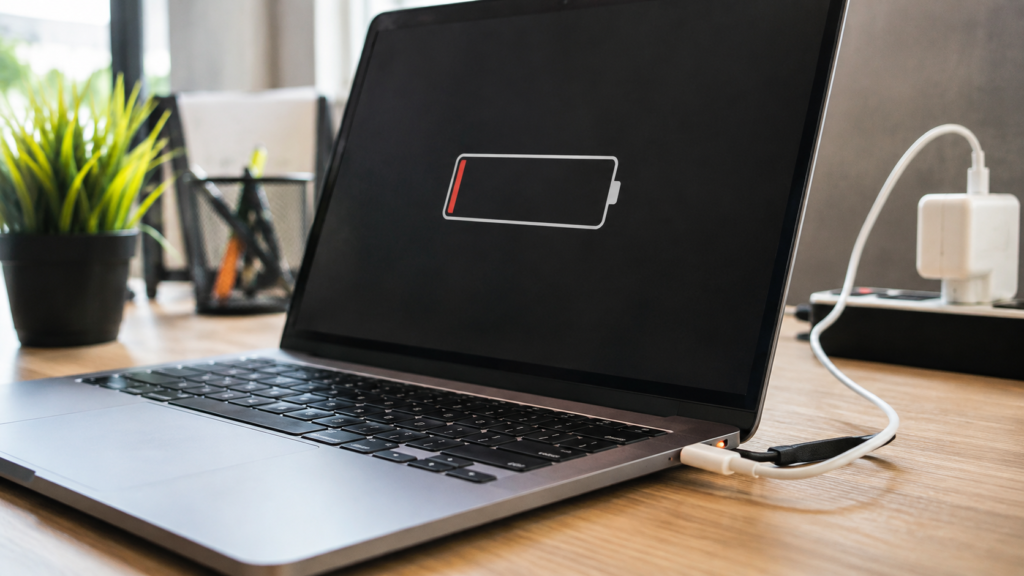

You plug the charger in, the connector clicks into place, and the battery icon still refuses to move. It’s one of the most unsettling tech problems, because it feels like the battery could be dying for good. In reality, why my laptop isn’t charging almost always has a simple, fixable explanation rather than an expensive one, and most people can solve it themselves within minutes using nothing more than the tools already in their homes.
This guide breaks down the most common symptoms, the real causes behind them, and the fixes that consistently work across brands like Dell, HP, Lenovo, Asus, and MacBook. Instead of guessing randomly, you’ll follow a logical troubleshooting path that starts with the simplest checks and moves toward deeper software and hardware solutions. By the end, you’ll understand exactly why your laptop stopped charging and how to get it running reliably again.
Common Symptoms Worth Noticing
Not every charging failure looks identical, and the specific symptom you’re experiencing is actually a useful diagnostic clue. Windows laptops frequently display the message “Plugged in, not charging” directly beside the battery icon, indicating that the system recognizes the power source but isn’t routing that energy to the battery cells. This distinction matters because it usually points toward a software or driver issue rather than a completely dead charger.
In other cases, there’s no response whatsoever — no LED light on the adapter, no charging sound, and no change in battery percentage no matter how long it stays connected. Some laptops behave inconsistently, charging only when the cable is at a particular angle. In contrast, others display 0% and refuse to power on—identifying your exact symptom before troubleshooting saves time and prevents you from chasing the wrong solution.
What Usually Causes This Problem
So why is my laptop not charging in the first place? The most frequent and easiest-to-fix cause is a loose or dirty charging port, where accumulated dust, lint, or slightly bent pins prevent the cable from making a solid, uninterrupted connection with the motherboard. A quick visual inspection with a flashlight often reveals this issue almost immediately, before you even need to open any settings menus.
Beyond the port itself, a damaged charging cable, a mismatched low-wattage adapter, or even a faulty wall outlet can silently block power delivery without any obvious warning signs. On the software side, corrupted battery drivers, outdated BIOS firmware, and overheating protection systems can all prevent a perfectly healthy battery from accepting a charge. Natural battery aging, in which lithium-ion cells gradually lose their ability to hold a charge, rounds out the list of common culprits.
Check Your Connections and Power Source
Before assuming your laptop needs a repair, rule out the simplest explanations first. Disconnect the cable from both the wall outlet and the laptop, inspect both ends for visible dust, lint, or debris, and reconnect everything firmly until you feel it click into place. A surprising number of people who ask why their laptop isn’t charging discover the answer is simply a loose or dirty connection that needs a firmer seat.
If reseating the cable doesn’t resolve the issue, try plugging directly into a wall outlet rather than relying on a power strip, surge protector, or extension cord, as these can sometimes deliver inconsistent or insufficient voltage. Testing an entirely different outlet also helps rule out a household electrical problem unrelated to your laptop, adapter, or battery, saving you from unnecessary troubleshooting later.
Inspect the Cable and Charger
Charging cables endure a surprising amount of daily wear, getting coiled tightly in bags, bent around furniture legs, or occasionally chewed by curious pets. Examine the entire length closely for fraying, exposed copper wiring, or a bent charging pin at the connector tip, any of which can disrupt steady power flow even when the connection appears visually intact and properly seated in the port.
Wattage compatibility deserves equal attention, since cheap third-party USB-C bricks frequently can’t supply enough sustained power for larger, more demanding laptops. This mismatch often causes intermittent charging, extremely slow charging, or no charging response at all. Whenever possible, stick with your laptop manufacturer’s original charger or a certified replacement that explicitly matches the required wattage for dependable, consistent results every time.
Clean the Port and Fix Battery Drivers
A charging port clogged with lint, pocket debris, or dust prevents the connector pins from making full, reliable contact. Power the laptop down completely, then gently clear the port using a can of compressed air or a soft, non-conductive brush designed for electronics. Avoid metal tools or toothpicks entirely, since they can bend internal connectors and turn a minor annoyance into a genuine hardware problem.
If the hardware checks out clean, a corrupted battery driver might be the real culprit behind your charging trouble. On Windows, open Device Manager, expand the Batteries category, right-click the Microsoft ACPI-Compliant Control Method Battery entry, and select Uninstall. Restart the laptop afterward, and Windows will automatically reinstall a fresh driver, which resolves this particular charging glitch far more often than people expect.
Cool the Laptop and Try a Power Cycle
Laptops rely on built-in thermal sensors that intentionally pause charging whenever internal temperatures climb too high, protecting sensitive battery cells from potential damage or degradation. If your device feels noticeably warm or hot to the touch, close any demanding applications immediately, place it on a hard, flat surface to ensure proper airflow, and give it several minutes to cool before checking whether charging resumes on its own.
A simple power cycle can also clear stubborn temporary glitches that block charging for no obvious reason. Shut the laptop down completely, unplug the charger, and hold the power button for roughly fifteen to thirty seconds to drain any residual electrical charge from the system. Reconnect the charger and power it back on afterward — this quick reset resolves more charging issues than most users initially assume.
Update the BIOS and Test the Battery
Outdated BIOS or power management firmware can occasionally misreport battery status or block the charging process entirely, even when the hardware itself is functioning normally. Visit your laptop manufacturer’s official support page, locate the latest BIOS update for your exact model number, and install it carefully, following every provided instruction precisely, since an interrupted update can create far bigger problems than the one you started with.
If none of the previous fixes make a difference, the battery itself may be worn beyond usable capacity. Lithium-ion batteries naturally lose their charging capacity after hundreds of charge cycles and eventually stop holding a charge reliably, no matter what troubleshooting steps you attempt. At this stage, a professional battery replacement, arranged through the manufacturer or a trusted repair shop, is typically the most practical final solution.
Battery or Charger: How to Tell the Difference
Testing your laptop with a completely different, known-working charger is the fastest and most reliable way to isolate where the actual problem lies. If a friend’s identical charger powers your laptop normally, your original cable or adapter was almost certainly the faulty component all along. If the replacement charger also fails to charge the laptop, suspicion shifts toward the battery itself or a deeper internal charging circuit problem.
Most modern operating systems also include built-in diagnostic tools worth checking before jumping to conclusions. Windows users can generate a detailed battery report via Command Prompt, while Mac users can view battery health directly in System Settings> Battery. These built-in reports reveal actual remaining capacity and total charge cycle count, giving you concrete evidence of genuine battery wear rather than a purely external cable or adapter issue.
When Professional Repair Makes Sense
If you’ve worked carefully through every fix above and your laptop still won’t charge properly, the issue may point toward a damaged motherboard, a broken internal charging circuit, or a physically worn-out port that genuinely requires professional diagnostic equipment. Continuing to force a damaged connection at this stage risks causing further internal damage, so it’s worth pausing before attempting any additional do-it-yourself repairs.
Weigh the estimated repair cost carefully against your laptop’s current age and overall market value before committing. A straightforward battery replacement is usually quite affordable, but motherboard-level charging circuit repairs can sometimes approach the cost of buying an entirely new laptop. For devices still under active warranty, manufacturer support tools like Dell SupportAssist, HP Support Assistant, or Lenovo Vantage should always be your very first stop.
Preventing Future Charging Problems
Once your laptop is charging reliably again, a handful of simple habits will help keep the same problem from returning down the road. Stick consistently to manufacturer-approved chargers, avoid exposing your device to extreme heat or cold whenever possible, and periodically clean both the charging port and cooling vents to prevent dust buildup from gradually interfering with the electrical connection over months of regular daily use.
Battery longevity habits matter just as much as physical maintenance. Many manufacturers now recommend keeping charge levels between 20 and 80 percent rather than constantly pushing toward 100 percent, since both deep discharges and prolonged full charges accelerate long-term battery wear. Keeping your drivers and BIOS firmware regularly updated further reduces the likelihood of recurring software-related charging failures.
Raed More: https://techustime.co.uk/how-to-backup-whole-laptop/
FAQs
Why is my laptop plugged in but not charging?
This message typically points toward a loose connection, a faulty cable or adapter, corrupted battery drivers, or an overheating-related safety shutoff triggered by the system. Windows often displays this exact wording even when the charger appears to be properly and securely connected, so checking each possible cause systematically usually reveals the real underlying issue fairly quickly.
How do I fix a laptop that won’t charge?
Start with the simplest possible checks: verify your connections, try a completely different wall outlet, and inspect the cable closely for visible physical damage. If those basic steps don’t help, move on to cleaning the charging port, reinstalling battery drivers, updating your BIOS firmware, and finally considering a professional battery replacement if nothing else resolves the problem.
How do I force my laptop to charge?
You technically can’t force a charge to occur due to underlying hardware limitations, but performing a full power cycle — shutting down completely, removing the charger, holding the power button for 30 seconds, then reconnecting everything — often clears temporary internal glitches that were quietly blocking normal charging behavior in the first place.
How do I know if it’s my battery or charger that’s bad?
Test your laptop with a different, known-good charger that closely matches the original specifications. If the laptop charges normally with the replacement, your original charger was almost certainly the faulty component. If it still refuses to charge, the battery or an internal charging circuit becomes the more likely explanation.
Is it bad to leave my laptop plugged in constantly?
Most modern laptops include intelligent charge management systems designed to prevent genuine overcharging damage, but consistently keeping a laptop at 100% can still gradually accelerate long-term battery wear. Where available, enabling a battery health or charge-limiting feature in your settings helps meaningfully extend your battery’s overall usable lifespan.
How long do laptop batteries typically last before needing replacement?
Most laptop batteries last between two and four years, or roughly three hundred to five hundred full charge cycles, before their capacity starts to decline noticeably enough to affect daily use. Usage habits, frequent heat exposure, and inconsistent charging patterns all meaningfully influence exactly how quickly a given battery degrades.
Can overheating really stop my laptop from charging properly?
Yes, absolutely. Built-in thermal sensors intentionally pause charging when internal temperatures rise too high, protecting sensitive battery cells from potential heat-related damage over time. Simply letting the laptop cool down naturally and clearing dust buildup from the vents typically resolves most heat-related charging interruptions within a few minutes.
Final Thoughts
If you’ve spent time wondering why your laptop is not charging, the honest answer is almost always one of a handful of genuinely fixable causes: a loose connection, a damaged cable, a dusty port, outdated drivers, overheating, or simply a battery that has reached the natural end of its usable lifespan. Working through these fixes in order, starting with the simplest checks before moving toward more advanced software and hardware steps, consistently saves both time and unnecessary repair costs.
Most charging problems resolve with the first few fixes described above, and even the more stubborn cases usually point to an affordable battery replacement rather than requiring an entirely new laptop purchase. Keep this guide handy for future reference, and remember that identifying your specific brand and model can help narrow down troubleshooting even further whenever a similar issue resurfaces.