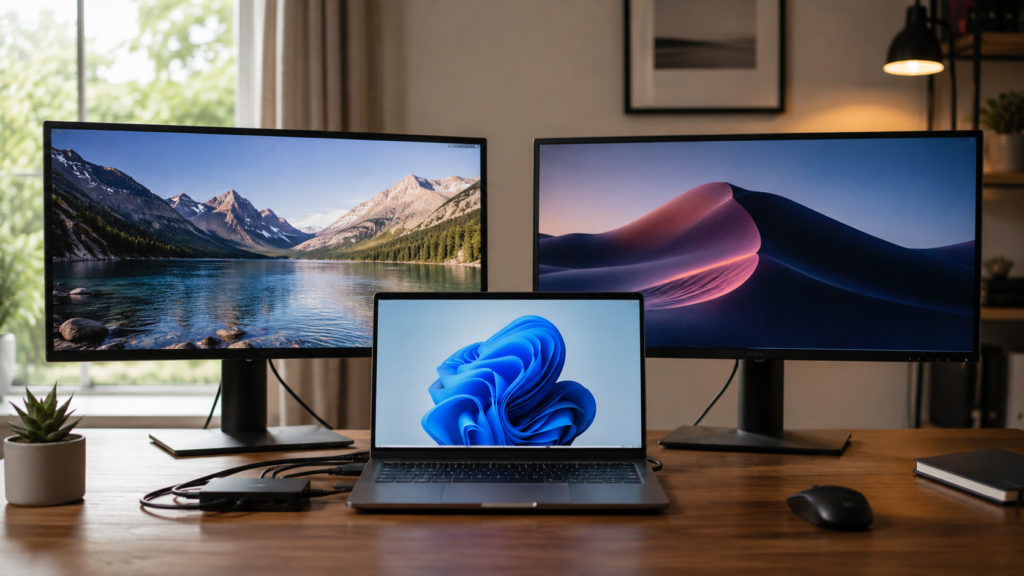

Working from a single laptop screen can feel like trying to cook a full meal on one burner. If you have ever juggled a dozen browser tabs, a spreadsheet, and a video call at the same time, you already understand the appeal of a bigger workspace. Learning how to connect 2 monitors to a laptop gives you the extra room you need for remote work, coding, design, trading, or simply keeping email and your main task visible side by side without constant window switching.
The encouraging part is that you do not need to be a tech expert to make this happen. Whether your laptop has two video ports, a single HDMI port, or none at all without an adapter, there is a practical method that fits your situation. This guide covers every practical option, from simple direct cables to full docking stations, along with the exact steps to configure your display once everything is physically connected.
Check Your Laptop’s Ports Before You Buy Anything
Before purchasing a single cable or accessory, spend a couple of minutes examining what your laptop already offers. Most modern laptops include some combination of HDMI, USB-C, Thunderbolt 3 or 4, and DisplayPort connections, and knowing exactly which ones are available will determine which dual-monitor method actually works for your setup. Skipping this step is the most common reason people buy the wrong adapter or cable.
Not every laptop’s graphics processor can drive two external displays simultaneously, particularly budget models with basic integrated graphics. Open your display settings and use the detection option to see how many screens your system recognizes, or check Device Manager for more details about your graphics adapter. Apple Silicon users should also note that some entry-level chips officially support only one external display without additional software workarounds.
Connect Two Monitors Using Direct Ports
If your laptop has two separate video output ports, this is the most straightforward way to connect 2 monitors to a laptop. Plug the first monitor into HDMI and the second into USB-C or DisplayPort, power both screens on, and your operating system should detect them automatically within seconds. No extra software or hardware is typically required for this setup to work smoothly.
Many people search for solutions because their laptop has only one HDMI port, a common limitation in slimmer designs. In that situation, a USB-C-to-HDMI adapter or a second compatible port can easily close the gap. It is worth choosing an adapter rated for at least 4K at 60Hz, since cheaper alternatives often cause flickering, lag, or an unstable connection that disrupts your workflow over time.
This direct-cable approach is budget-friendly and requires nothing more than a cable or adapter, making it appealing to anyone who wants a fast, low-cost solution. However, it is strictly limited by the ports your laptop physically has, so it suits semi-permanent desk arrangements better than laptops that get unplugged and moved around throughout the day.
Use a Docking Station or USB-C Hub
For anyone who regularly connects and disconnects their laptop, a docking station is the most reliable way to run two monitors without repeated cable swapping. A single cable connects your laptop to the dock, which manages power, video output, and additional peripherals, effectively turning a laptop into a full desktop workstation within seconds of plugging in.
When shopping for a docking station that supports two monitors and a laptop simultaneously, prioritize Thunderbolt or USB4 models over basic USB-C hubs, as they handle higher bandwidth and multiple 4K outputs more smoothly. Also confirm how many display ports the dock includes and whether it delivers enough wattage to charge your laptop while running both screens at once.
If a dedicated dock feels unnecessary for your needs, a simpler USB-C hub with HDMI and DisplayPort outputs can still connect two monitors to a laptop without requiring a full docking station. It will not match the charging power or port variety of a proper dock, but it remains an affordable, lightweight option for people who only need occasional dual-screen functionality.
Try an HDMI Splitter When Ports Are Limited
An HDMI splitter is another route worth understanding, though it behaves differently than most people expect. A splitter typically mirrors the same image across both monitors rather than extending your desktop into two independent workspaces. This distinction matters because it is not the right tool if your goal is genuinely expanded screen space for multitasking rather than duplicate displays.
If mirroring is actually what you need, such as for presentations, classroom setups, or matching displays side by side, a splitter offers a cheap and simple fix. For true extended-desktop functionality, though, a USB-C hub or docking station remains the better investment, since splitters often cap resolution and refresh rates lower than a direct connection would otherwise allow.
Configure Dual Monitors in Your Display Settings
Once your monitors are physically connected, open your system’s display settings to configure everything correctly. Most operating systems let you choose between extending, duplicating, or showing content only on a second screen, and most people building a productivity setup will want the extend option to maximize available screen space across both displays for genuine multitasking.
From there, drag the on-screen monitor icons to match your physical desk layout, so your cursor moves naturally between screens without confusion. You can also designate a primary display, adjust resolution and scaling independently for each monitor, and fine-tune refresh rates. If a monitor is not detected, try updating your graphics drivers or reseating the cable before assuming there is a deeper hardware problem.
Add a Third Screen Using Your Laptop Display
Many people researching how to connect 2 monitors to a laptop actually want a total of 3 screens by including the laptop’s built-in display. This works well with either a docking station or a capable USB-C hub, provided your laptop’s graphics processor can handle three simultaneous outputs without stuttering or dropped frames during regular use.
Before attempting a three-screen arrangement, confirm your graphics card’s official display limit in its published specifications, since integrated graphics often cap out at two or three screens depending on resolution demands. Position your laptop screen centrally or off to one side based on your workflow, and keep frequently used applications on your primary monitor for the smoothest, most efficient setup.
Fix Common Dual-Monitor Problems
Even with the right hardware in hand, dual-monitor setups occasionally run into frustrating snags. The most frequent culprits are outdated graphics drivers, low-quality or damaged cables, and ports that cannot supply enough bandwidth for two high-resolution screens running simultaneously, especially when using long or budget cables over extended distances.
If one monitor shows a mirrored image instead of extending properly, double-check the display mode in your settings menu first. Flickering or noticeable lag usually points to a cable or port limitation rather than a deeper software issue, so swapping the cable is worth trying before reinstalling drivers. Updating graphics drivers through your system’s update tool typically resolves most stubborn detection problems.
Build a Comfortable, Long-Term Setup
A little planning goes a long way toward a genuinely comfortable dual-screen workspace. Matching monitor sizes and resolutions creates a more seamless visual experience across screens, and investing in a monitor arm can free up valuable desk space while letting you fine-tune height and viewing angle for better posture during long working sessions.
Cable management also matters more than most people expect, since tangled cords behind two monitors and a docking station can quickly become a real headache. Consider using built-in window-snapping features to organize applications efficiently across both screens, keeping frequently used tools within easy reach regardless of which display you are working on at any given moment.
Read More: https://techustime.co.uk/what-is-agile-software-development/
FAQs
Can any laptop support two external monitors?
Most modern laptops with USB-C, Thunderbolt, or dual video ports can support two external monitors without issue. Very basic or older laptops with only a single HDMI port may need an adapter, splitter, or docking station to make a dual-screen setup work properly.
How do I connect two monitors to a laptop with only one HDMI port?
Use a USB-C-to-HDMI adapter if your laptop includes USB-C, or connect an HDMI splitter for a mirrored display. A docking station remains the most reliable option if you want a fully extended desktop along with extra ports for other accessories.
Do I need a docking station to connect two monitors?
No, a docking station is not strictly required. Direct cables or a basic USB-C hub can work well, especially for occasional use. A docking station offers greater convenience and reliability for people who frequently connect and disconnect their laptops throughout the day.
Why is my laptop only mirroring instead of extending to two monitors?
This usually means your display mode is set to duplicate rather than extend. Open your display settings, locate the multiple-display options, and switch the mode to extend so that each monitor shows independent content rather than the same image.
Can I connect two monitors to a laptop and still use the laptop screen as a third display?
Yes, as long as your laptop’s graphics processor supports three simultaneous displays. This is a popular option for people who want maximum screen space without purchasing a third dedicated external monitor for their desk setup.
What’s the difference between an HDMI splitter and a USB-C hub for dual monitors?
An HDMI splitter typically mirrors the same image across both screens. At the same time, a USB-C hub or docking station can extend your desktop across two independent displays, each showing different content simultaneously for genuine multitasking.
Does connecting two monitors slow down my laptop’s performance?
For most everyday tasks, no noticeable slowdown occurs. However, graphics-intensive work like gaming or video editing across two high-resolution monitors can strain a laptop with basic integrated graphics, so real-world performance ultimately depends on your specific hardware.
Final Thoughts
There is no single correct way to connect two monitors to a laptop, since the right method depends entirely on your available ports, your budget, and how often you plan to move your setup around. Direct cables work well for simple, stationary desks, while docking stations shine for anyone who wants a fast, dependable connect-and-disconnect routine without sacrificing display quality or charging speed.
Whichever path you choose, take a moment to confirm your laptop’s port options and graphics capabilities first, since that single check prevents most compatibility headaches down the line. With the right cable, hub, or dock in hand, you can have a fully extended, comfortable dual-monitor workspace running within minutes rather than hours.