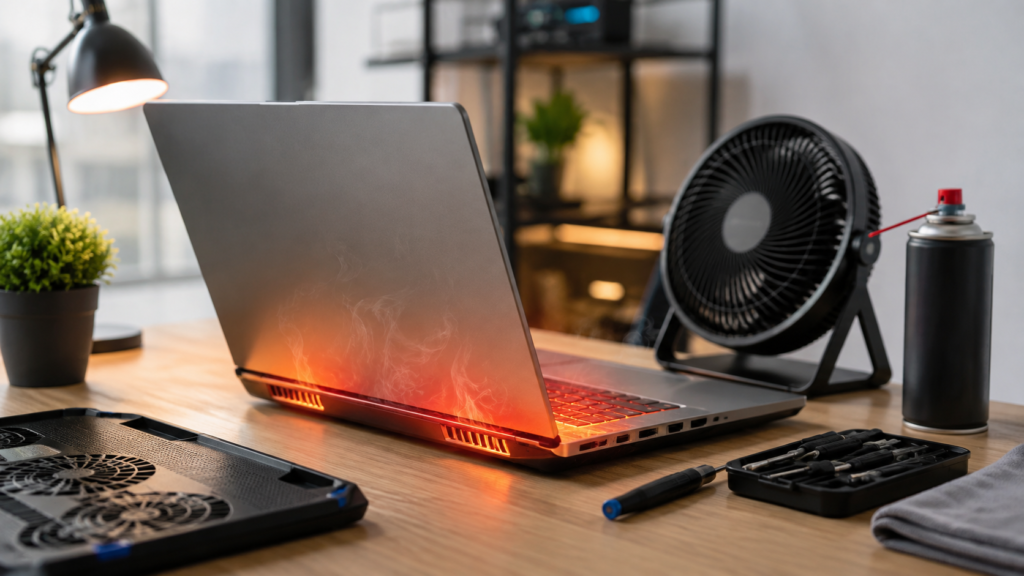

A laptop that runs hot, shuts off without warning, or sounds like it’s about to take flight isn’t just annoying — it’s a sign your machine is struggling to manage heat properly. Learning how to fix laptop overheating is one of the most valuable troubleshooting skills any laptop owner can pick up, since heat buildup quietly damages components and drags down performance long before you notice a real problem.
The encouraging part is that most overheating issues can be solved at home, often without tools or technical expertise. This guide walks through exactly why laptops overheat, the warning signs to watch for, and nine practical fixes, ranging from simple habit changes to more advanced hardware adjustments. By the end, you’ll know precisely how to fix laptop overheating and keep it from coming back.
What Causes a Laptop to Overheat
Heat becomes a problem when it’s produced faster than your laptop can release it. Dust trapped inside fans and vents is the most common physical cause, gradually restricting airflow until hot air has nowhere to escape. Dried-out thermal paste, blocked exhaust vents, and aging internal components all compound this issue, especially in laptops that have been in daily use for a few years without maintenance.
Software-related causes are just as common, even if they’re less visible. Too many background applications, outdated graphics drivers, and unnoticed malware can all push your CPU and GPU to work harder than necessary, generating excess heat with no benefit to you. Recognizing these root causes early makes it far easier to apply the right fix instead of guessing at random solutions.
Signs Your Laptop Is Running Too Hot
A fan that suddenly ramps up to full speed during simple tasks like browsing or typing is often the earliest indicator something isn’t right. If the bottom or keyboard area feels uncomfortably warm to the touch, or your laptop shuts down unexpectedly during normal use, these are strong signs that internal temperatures have climbed well beyond a safe operating range.
Performance changes are another reliable clue. Stuttering during video playback, noticeable lag while typing, or a sudden slowdown in tasks that used to run smoothly usually indicates your system is thermal throttling to prevent damage. Free monitoring tools like HWMonitor or Core Temp can confirm whether heat is truly the cause of the problem before you start troubleshooting.
Clean the Vents and Internal Fans
Dust is, without exaggeration, the number one enemy of laptop cooling. Over months of everyday use, it settles into fan blades and vent openings, gradually choking off the airflow your laptop depends on to stay cool. A can of compressed air, applied in short controlled bursts while holding the fan blades still to avoid damaging them, can clear this buildup in just a few minutes without opening the case.
Making this a habit every three to six months, depending on your environment, keeps airflow consistent and prevents heat from building up silently. Homes with pets or dusty rooms may need more frequent cleaning. This single step is often the fastest and cheapest way to fix laptop overheating, and many users notice an immediate difference in fan noise and surface temperature.
Fix Where and How You Use Your Laptop
Using a laptop on a bed, sofa, or your lap might feel comfortable, but soft surfaces can block the intake and exhaust vents on the device’s underside. This traps hot air inside the chassis instead of letting it escape, causing temperatures to climb even during light everyday tasks like writing emails or browsing the web.
Switching to a hard, flat surface — a desk, table, or dedicated laptop stand — restores proper airflow almost instantly and costs nothing. Slightly elevating the back of the laptop also helps hot air escape more efficiently through the rear vents. It’s a small habit change, but it consistently ranks among the most effective ways to fix laptop overheating for the long term.
Add a Cooling Pad or External Fan
Cooling pads sit beneath your laptop and use their own built-in fans to push additional airflow across the base, actively drawing heat away from the chassis rather than waiting for it to dissipate naturally. They’re inexpensive, portable, and particularly useful for gaming laptops or older machines whose internal fans can no longer keep up with modern software demands.
If buying a cooling pad isn’t an immediate option, placing a small desk fan nearby can provide temporary relief. It won’t solve the underlying issue on its own, but it buys valuable breathing room while you work through other causes. Paired with regular vent cleaning, this simple addition noticeably improves how well a laptop manages heat over time.
Adjust Your Power Settings
Running a laptop on a “High Performance” power plan forces the CPU and GPU to operate at their maximum capacity nearly all the time, generating significantly more heat than most everyday tasks actually require. Switching to a “Balanced” or “Power Saver” setting within your operating system reduces this load almost instantly, often with just a couple of clicks.
This adjustment works especially well for laptops used mainly for writing, browsing, or spreadsheets rather than gaming or video editing. You’ll sacrifice a small amount of peak performance. Still, the tradeoff — cooler running temperatures, quieter fans, and noticeably longer battery life — makes this one of the easiest and most underused overheating fixes available to every laptop owner.
Close Background Programs You Don’t Need
Dozens of open browser tabs, forgotten background apps, and unnecessary startup programs quietly consume processing power without your knowledge, generating heat that serves no real purpose. Opening Task Manager on Windows or Activity Monitor on a Mac quickly reveals which processes are using the most resources, making it easy to identify and close the biggest offenders right away.
Turning off unnecessary startup programs prevents this problem from resurfacing every time you power on your laptop. Building this into a regular habit is well worth the small effort, since a leaner, more focused system doesn’t just run cooler — it also feels noticeably faster and more responsive, which matters just as much as solving the heat issue itself.
Update Drivers, Software, and Your Operating System
Outdated graphics and chipset drivers often perform less efficiently than their newer counterparts, forcing your hardware to work harder to complete the same tasks. Manufacturers regularly release updates specifically aimed at improving power efficiency and thermal management, meaning something as simple as keeping drivers current can meaningfully reduce unnecessary heat generation over weeks and months of use.
Setting aside a few minutes each month to check for driver and operating system updates through your device manager or the manufacturer’s support site pays off in more ways than one. Beyond helping control temperature, these updates typically improve overall stability, security, and day-to-day performance — a genuinely worthwhile tradeoff for such a small amount of ongoing effort.
Scan for Malware and Hidden Background Scripts
Malicious software, particularly cryptomining scripts, can silently push your CPU or GPU to maximum usage around the clock, with no obvious warning beyond a hot, sluggish laptop. Because these programs are specifically designed to stay hidden from casual observation, running a thorough scan with trusted antivirus software is an essential step whenever overheating happens without an obvious cause.
If your laptop feels hot even while sitting idle with nothing visibly open, malware should move to the top of your suspect list. Running a full system scan, removing anything flagged as suspicious, and keeping real-time protection active afterward closes this loophole for good — and in many cases resolves overheating problems that other fixes on this list couldn’t touch.
Replace the Thermal Paste for a Deeper Fix
Thermal paste sits between the CPU and its cooling system, transferring heat efficiently when it’s fresh and properly applied. After roughly two to four years, it dries out and cracks, dramatically reducing heat transfer even if every other component is functioning normally. Reapplying fresh paste often restores temperatures to near-original levels almost immediately after the job is done.
This particular fix requires opening the laptop chassis, which may void your warranty and poses a genuine risk if you’re inexperienced with internal hardware. If you’re comfortable with careful, methodical disassembly, plenty of model-specific guides are available online to walk you through it safely. Otherwise, a qualified technician can typically perform this service quickly and affordably on your behalf.
Undervolt the CPU or GPU
Undervolting reduces the voltage supplied to your processor while maintaining the same level of performance, thereby lowering the heat it produces during use. Tools such as Intel XTU or ThrottleStop make this adjustable through software rather than hardware, and many users report noticeably lower temperatures and quieter fans once they’ve found the right stable settings for their specific machine.
Because undervolting results vary depending on your exact CPU model and individual silicon quality, it requires a bit of testing and research tailored to your laptop. Start with conservative adjustments and stress-test thoroughly after each change to confirm everything remains stable. Done correctly, this is one of the more advanced yet genuinely rewarding ways to fix laptop overheating without opening the device at all.
When It’s Time to Call in a Professional
If you’ve worked through these fixes carefully and your laptop still shuts down unexpectedly or continues running alarmingly hot, the issue may point to a deeper hardware failure — a dying fan motor, a damaged heat pipe, or a manufacturing defect that goes beyond typical troubleshooting. At that stage, professional diagnosis helps prevent further, potentially far more costly damage to your device.
Before attempting to open the device yourself, check whether your laptop is still under warranty, since unauthorized repairs can void coverage entirely. A certified technician can usually pinpoint the exact hardware issue and resolve it faster and more safely than repeated DIY attempts, particularly when the problem involves internal components, motherboard damage, or issues tied to a manufacturer defect.
How to Prevent Overheating From Coming Back
Prevention is far simpler than repeatedly troubleshooting the same problem month after month. Build a straightforward routine: clean the vents every few months, avoid soft surfaces that block airflow, keep background applications to a minimum, and occasionally monitor internal temperatures using free software. These small, consistent habits stop heat problems from quietly building up in the first place.
For heavier workloads like gaming, video editing, or 3D rendering, investing in a quality cooling pad and staying current with driver updates makes a noticeable long-term difference. Prevention doesn’t just protect performance today — it meaningfully extends the overall lifespan of your laptop’s internal components, ultimately saving you both money and frustration well into the future.
Read More: https://techustime.co.uk/how-to-take-pictures-of-northern-lights-with-smartphone/
FAQs
What temperature is too hot for a laptop?
Most laptops operate safely between 40–65°C at idle and up to roughly 80–90°C under heavy load. Consistently exceeding 90°C, especially when the laptop is idle, indicates a genuine cooling problem that warrants immediate attention using the fixes outlined throughout this guide.
Can laptop overheating cause permanent damage?
Yes. Prolonged exposure to high temperatures degrades battery health, warps internal components, and shortens the overall lifespan of both the motherboard and processor. Addressing overheating early on prevents costly, and in some cases irreversible, hardware damage further down the line.
Why does my laptop overheat even when I’m barely using it?
Background processes, excessive browser tabs, hidden malware, or a dust-clogged fan are the most common culprits behind this. Check Task Manager or Activity Monitor first, then run a full malware scan if resource usage appears normal but temperatures remain unexpectedly high.
Is it normal for a laptop fan to run loudly sometimes?
Yes, particularly during demanding tasks like gaming, rendering, or video editing. However, constant loud fan noise during light everyday tasks like browsing usually points to dust buildup, restricted airflow, or a fan working harder than it reasonably should.
How often should I clean my laptop’s fans and vents?
Roughly every three to six months for most users, though dustier environments or homes with pets may require monthly attention instead. Regular maintenance remains one of the simplest and most reliable ways to fix laptop overheating before it becomes a serious issue.
Does closing my laptop while it’s still running cause overheating?
It can, particularly if the device doesn’t fully enter sleep mode or if the vents stay blocked inside an enclosed bag. Double-check that your sleep settings are functioning correctly, and avoid storing a running laptop anywhere without adequate airflow.
Can I fix laptop overheating without opening the device?
Absolutely. Most of the solutions covered in this guide — cleaning vents externally, adjusting power settings, closing background apps, updating drivers, and adding a cooling pad — require no disassembly whatsoever and remain safe for virtually any user to try.
Final Thoughts
Overheating feels frustrating in the moment, but it’s rarely a dead end for your laptop. From simple habit changes like cleaning vents and adjusting power settings to more advanced steps such as undervolting or replacing thermal paste, there’s a workable solution here for nearly every situation you might encounter. Work through these fixes in order, and most laptops will run noticeably cooler in a short time.
Knowing how to fix laptop overheating doesn’t just solve today’s immediate problem — it protects your investment for years to come and keeps your machine running the way it should. Bookmark this guide as a reference, revisit the prevention tips regularly, and your laptop should stay cool, quiet, and reliable long after the original issue has been resolved.