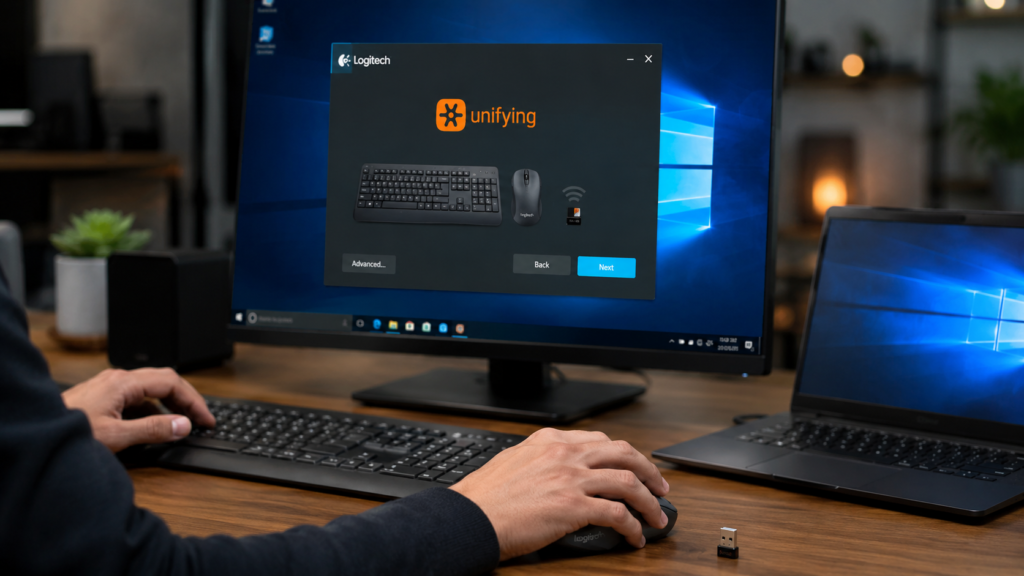

If you rely on more than one Logitech wireless mouse, keyboard, or trackball, you’ve likely dealt with the annoyance of USB ports filling up fast. The Logitech Unifying Software download was built to solve exactly that problem, allowing a single compact receiver to manage up to six compatible devices at once. Instead of juggling multiple dongles, you get one streamlined connection point that keeps your desk tidy and your devices reliably paired without constant reconnecting or driver conflicts.
This guide walks through everything you need to know before downloading Logitech Unifying Software, including platform-specific instructions, installation steps, common troubleshooting fixes, and how this tool compares to Logitech’s newer software. Whether you’re setting up a fresh workstation or replacing a lost receiver, understanding how this software works will save you time and prevent frustrating connectivity issues down the road, especially across different operating systems.
What Is Logitech Unifying Software
Logitech Unifying Software is a dedicated utility that pairs multiple wireless peripherals with a single USB receiver. Rather than plugging in a separate wireless dongle for each mouse or keyboard, users install a single Unifying receiver and connect several compatible products to it simultaneously. This approach is especially useful for people working in tight desk setups, shared offices, or on laptops with limited available ports, where every USB slot genuinely matters for other accessories.
It’s worth understanding how this differs from Logitech’s newer application, Logi Options+. The Logitech Unifying Software download focuses narrowly on receiver pairing and basic device management. At the same time, Logi Options+ expands on that with customization features such as remappable buttons, gesture controls, and seamless flow across multiple connected computers. Not every Logitech device supports Unifying pairing, so confirming compatibility with your specific mouse or keyboard model beforehand will prevent unnecessary setup confusion.
System Requirements Before You Download
Before starting your Logitech Unifying Software download, it helps to confirm that your operating system and hardware meet the basic requirements. The software has traditionally supported Windows 7, Windows 10, and Windows 11, along with select Linux distributions through community tools and limited Chromebook compatibility. macOS support, however, has become considerably more restricted in recent years, a detail covered in more depth later in this article for Mac-based users.
Beyond operating system compatibility, you’ll need an open USB-A port to plug in the physical Unifying receiver itself, along with a stable internet connection to download the installer file safely. In most cases, administrator-level permissions on your computer are also required to complete installation successfully. Users without admin access frequently report installation errors, so checking your account permissions in advance can prevent a genuinely frustrating setup experience later.
How to Download Logitech Unifying Software
For Windows 10 and Windows 11 users, the safest and most reliable way to download Logitech Unifying Software is through Logitech’s official support website. Search for the Unifying Software page on logi.com, select your correct Windows version, and download the installer executable directly from that verified source. Windows 7 users can still locate legacy-compatible versions, although Logitech’s active support and updates for that older operating system have significantly diminished over time.
Mac users face a somewhat different situation, since Logitech has quietly stepped back from offering a standalone Unifying installer for macOS. Instead, the company now directs Mac users toward Logi Options+, which includes pairing functionality plus additional customization tools. Linux users, meanwhile, won’t find an official Logitech installer at all. Still, open-source community tools such as Solaar offer dependable Unifying receiver management, making this a genuinely solid alternative outside the Windows and Mac ecosystems.
Step-by-Step Installation Guide
Once your Logitech Unifying Software download has finished, locate the installer file and run it to begin setup. Accept any permission prompts that appear, choose your preferred installation folder if given the option, and allow the wizard to complete the process. On most modern systems with a reasonably fast internet connection, this entire installation typically takes less than a minute from start to finish without requiring a restart.
Next, plug your physical Unifying receiver into an available USB port, preferably one connected directly to your motherboard rather than through an external hub. Open the newly installed software, select “Add a device,” and switch your mouse or keyboard into pairing mode as instructed on screen. The software scans for nearby compatible devices within seconds, and you can repeat this same process for each additional peripheral until everything connects successfully.
Troubleshooting Common Download and Installation Issues
Some users report that their computers fail to recognize the Unifying receiver even after installation is complete. If this happens, try switching to a different USB port, restarting the Unifying software, and checking whether your system drivers need updating. A loose receiver connection, often caused by transport or accidental bumping, is another surprisingly common culprit behind this particular recognition issue on both desktops and laptops.
Other users struggle to find a working, up-to-date link to download Logitech Unifying Software, since Logitech’s support pages are occasionally restructured, renamed, or temporarily removed without notice. If the official page returns an error message, checking community forums like Reddit often reveals updated mirror links shared by other users. Also, avoid installing the software without administrator rights, as this often causes silent, hard-to-diagnose installation failures on Windows machines.
Logitech Unifying Software Versus Logi Options Plus
Logi Options+ represents Logitech’s actively developed, modern replacement for the original Unifying software, and it’s genuinely the better long-term choice for most current users. It supports newer device releases, offers considerably deeper customization, such as programmable buttons and multi-computer flow, and continues to receive regular feature updates, something the older Unifying tool no longer consistently benefits from these days.
That said, older Logitech peripherals that Logi Options+ doesn’t recognize still require the classic Logitech Unifying Software download to function properly. Many legacy mice and keyboards only pair properly through the original Unifying receiver interface, which keeps this older software genuinely relevant despite Logitech’s broader company-wide shift in focus and resources toward its newer, more feature-rich application ecosystem.
Safety Tips for Downloading From Official and Third-Party Sources
Always prioritize Logitech’s official support domain when searching for a Logitech Unifying Software download, as it remains the safest and most reliable source. Third-party download aggregators sometimes bundle unwanted extra software, distribute outdated versions, or in rarer cases, disguise malicious files as legitimate installers. Taking a few extra seconds to verify the source before downloading can genuinely save you significant technical headaches and security risks later on.
If the official link is unavailable and you must rely on a third-party mirror instead, take precautions first. Check user reviews, scan the downloaded file with antivirus software before running it, and compare the reported file size against trusted download databases. Reputable platforms like CNET’s Download.com typically vet software submissions before listing them publicly, making them noticeably safer alternatives than obscure, unfamiliar file-hosting websites.
Read More: https://techustime.co.uk/how-hcs-411gits-software-built/
FAQs
Is Logitech Unifying Software still supported?
Partially. Logitech continues hosting legacy downloads for older devices, but active development and new feature updates are now concentrated primarily in Logi Options+, its modern replacement application for most current peripherals.
How do I download the Logitech Unifying Receiver software?
Visit Logitech’s official support website, search for “Unifying Software,” select your operating system, and download the installer directly from their verified support page for safety.
Does Logitech Unifying Software work on Mac?
Official availability is now limited since Logitech has phased out active Mac support for this tool. Mac users are generally encouraged to use Logi Options+ instead for full functionality.
Why won’t my computer recognize my Logitech Unifying receiver?
Try switching to a different USB port, restarting the software, updating outdated drivers, or reseating the receiver entirely. A loose connection or driver conflict is often the underlying cause.
Can I use Logitech Unifying Software on Linux or Chromebook?
There’s no official Linux installer available, but open-source tools like Solaar provide dependable Unifying receiver management for Linux users and select Chromebook configurations as a reliable alternative.
What is the difference between Logitech Unifying Software and Logi Options+?
Unifying focuses solely on receiver pairing and basic device management, while Logi Options+ adds deeper customization features like button remapping, gesture controls, and multi-computer flow support.
How many devices can I connect with one Unifying receiver?
Up to six compatible Logitech wireless devices can be paired simultaneously with a single Unifying USB receiver, significantly reducing the need for multiple separate dongles on your desk.
Is it safe to download Logitech Unifying Software from third-party sites?
Official sources are always safer. If using a third-party mirror is unavoidable, scan the file with antivirus software and verify it against trusted download databases before installation.
Conclusion
The Logitech Unifying Software download remains a genuinely practical tool for anyone managing multiple wireless Logitech peripherals, even as the company gradually shifts its focus toward Logi Options+. Windows users enjoy the most straightforward access through official channels; Linux users can confidently rely on community-built tools like Solaar; and Mac users should seriously consider migrating to the newer application for continued long-term support and functionality.
Regardless of which platform you use, always download from official or thoroughly verified sources, keep your receiver’s firmware up to date, and consider transitioning to Logi Options+ if your devices support it. Following these simple practices ensures a smoother, safer, and genuinely more future-proof experience with your Logitech peripherals for years to come, without unnecessary compatibility headaches or security concerns.