
Here’s the thing about learning how to screenshot on HP laptop models: the method that works depends on which HP you own and which version of Windows it’s running. An HP Pavilion on Windows 11 behaves differently from an HP EliteBook on Windows 10, and some newer HP laptops don’t even label the Print Screen key the way you’d expect.
Good news: once you know the handful of methods below, you’ll never Google this again. These are the seven ways that actually work in 2026, from the classic one-key shortcut to the built-in tools most people don’t know exist.
How to Screenshot on HP Laptop With the Print Screen Key
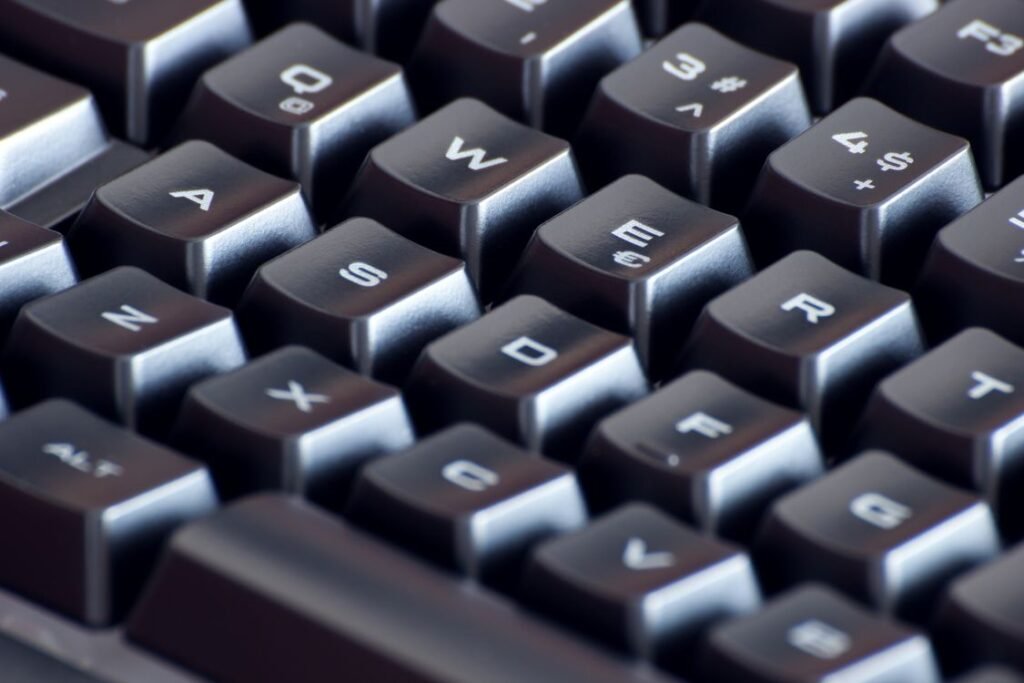
The fastest method — and the one most people are looking for — uses the Print Screen key. On HP laptops it’s usually labeled PrtSc, Prt Sc, or PrtScn, and it sits in the top row of the keyboard, typically near F12 or the Delete key.
Press it once. That’s it. Windows copies an image of your entire screen to the clipboard. Open Paint, Word, an email, or even a chat window and press Ctrl + V to paste it.
One catch: on many HP laptops, the top-row keys double as media controls (volume, brightness). If pressing PrtSc changes your volume instead of capturing the screen, hold Fn at the same time: Fn + PrtSc. The Fn key sits in the bottom-left corner of HP keyboards. This is the single most common reason people think screenshots “don’t work” on their HP — they’re just missing the Fn modifier.
Method 2: Windows Key + Print Screen (Auto-Save)
The plain PrtSc method has an annoying limitation: it only copies to the clipboard, so if you forget to paste, the screenshot is gone. The fix is Windows key + PrtSc (or Windows + Fn + PrtSc if your function keys need the modifier).
This captures the full screen AND saves it automatically as a PNG file. Your screen will dim for a split second — that’s your confirmation it worked. Windows drops the file in Pictures > Screenshots. Each file gets a sequential name like Screenshot (1).png, so they never overwrite each other.
If you take screenshots regularly — for work documentation, bug reports, tutorials — this should be your default method. No pasting required.
Method 3: Alt + Print Screen (Active Window Only)
Sometimes you don’t want your entire screen — just the window you’re working in, without your taskbar, desktop icons, or that embarrassing browser tab in the background. Press Alt + PrtSc (or Alt + Fn + PrtSc).
This copies only the currently active window to your clipboard. Paste it with Ctrl + V wherever you need it. It’s the cleanest way to share a screenshot of a single app without cropping anything afterward.
Method 4: Snipping Tool (Windows 11’s Best Option)
Every Windows 11 HP laptop ships with the Snipping Tool, and honestly, it’s the best screenshotting method for most people. Press Windows + Shift + S and your screen dims with a small toolbar at the top offering four capture modes:
- Rectangle — drag a box around exactly what you want
- Freeform — draw any shape
- Window — click a window to capture just it
- Fullscreen — the whole screen
The capture goes to your clipboard, and a notification pops up letting you open it in the Snipping Tool editor, where you can annotate with a pen or highlighter, crop, and save. You can also launch the full app from the Start menu by typing “Snipping Tool” — it has a delay timer (3, 5, or 10 seconds), which is perfect for capturing dropdown menus or tooltips that disappear when you press keys.
Method 5: Xbox Game Bar (Windows + G)
This one’s a surprise to most people: the Xbox Game Bar, built for gamers, works perfectly for screenshots on any HP laptop. Press Windows + G to open the overlay, then click the camera icon — or skip the overlay entirely and just press Windows + Alt + PrtSc.
Captures save automatically to Videos > Captures. The real advantage here: Windows + Alt + R also records video of your screen, so if you ever need to record a quick screen video instead of a still image, you’re already set up. Gamers on HP Victus and HP Omen laptops use this constantly, but it works on every Windows 10 and 11 machine.
Method 6: Screenshot on HP Laptop Without a Print Screen Key
Some HP models — certain EliteBooks, Chromebooks, and the newer OmniBook line — either hide the PrtSc key behind an Fn combination or skip it entirely. You still have options:
- On-screen keyboard: Type “on-screen keyboard” in Start, open it, and click its PrtSc key. Clunky but works in a pinch.
- Snipping Tool shortcut: Windows + Shift + S works regardless of whether a physical PrtSc key exists. Memorize this one.
- HP Chromebook: If you’re on an HP Chromebook (ChromeOS, not Windows), the shortcut is completely different: Ctrl + Show Windows key (the rectangle-with-two-lines icon where F5 would be) for a full screenshot, or Ctrl + Shift + Show Windows for a partial one.
Where Do HP Screenshots Go?
This confuses everyone at least once, so here’s the complete map:
- PrtSc alone / Alt + PrtSc: clipboard only — paste with Ctrl + V somewhere, or it’s lost
- Windows + PrtSc: auto-saved to Pictures > Screenshots
- Snipping Tool (Windows + Shift + S): clipboard + notification; click it to save wherever you like
- Xbox Game Bar (Windows + Alt + PrtSc): auto-saved to Videos > Captures
If you used Windows + PrtSc and can’t find the Screenshots folder, check OneDrive — on some HP setups with OneDrive backup enabled, screenshots get redirected to OneDrive > Pictures > Screenshots instead.
Screenshot Not Working on Your HP Laptop? Try These Fixes
If nothing happens when you press the keys, work through this list:
- Try the Fn key. As mentioned above, most HP laptops need Fn + PrtSc, not PrtSc alone. This fixes it 80% of the time.
- Check for a conflicting app. Dropbox, OneDrive, and some HP utilities can hijack the Print Screen key for their own screenshot features. Check their settings and disable the override.
- Update your keyboard driver. Open Device Manager, expand Keyboards, right-click your keyboard, and hit Update driver. A stale driver can silently break function keys — and while you’re in maintenance mode, keeping your laptop running fast overall prevents a whole category of weird behavior.
- Restart Windows Explorer. A glitchy Explorer process can break clipboard captures. Open Task Manager (Ctrl + Shift + Esc), find Windows Explorer, right-click, and choose Restart.
- Test in a clean boot. If screenshots work in Safe Mode but not normally, a startup program is interfering — trimming your startup programs usually reveals the culprit.
And if your screen itself is smudged or streaky in the screenshots you take, that’s a hardware problem, not a software one — here’s how to clean your laptop screen properly before your next capture.
Frequently Asked Questions
Where is the Print Screen key on an HP laptop?
It’s in the top row, usually between F12 and Delete, labeled PrtSc, Prt Sc, or PrtScn. On compact HP models it may share a key with another function — in that case, hold Fn while pressing it.
How do I take a screenshot on an HP laptop running Windows 11?
The easiest ways: press Windows + PrtSc to auto-save a full-screen shot to Pictures > Screenshots, or Windows + Shift + S to open the Snipping Tool for a selective capture. Both work on every Windows 11 HP laptop.
Why is my Print Screen button not working on my HP laptop?
Nine times out of ten, you need to hold Fn with it (Fn + PrtSc). If that doesn’t help, a third-party app like Dropbox or OneDrive may have claimed the key — check their settings — or your keyboard driver needs an update via Device Manager.
How do I screenshot on an HP Chromebook?
Chromebooks don’t use Windows shortcuts. Press Ctrl + the Show Windows key (the rectangle icon in the top row) for a full screenshot, or Ctrl + Shift + Show Windows to select an area. Captures save to your Downloads folder.
Can I screenshot just one window on HP?
Yes — press Alt + PrtSc (or Alt + Fn + PrtSc) to copy only the active window to your clipboard, then paste with Ctrl + V. Or use the Snipping Tool’s Window mode via Windows + Shift + S.
The Bottom Line
For most HP laptop owners, two shortcuts cover 95% of screenshotting needs: Windows + PrtSc for quick auto-saved full screenshots, and Windows + Shift + S when you want to capture just part of the screen. Learn those two, remember the Fn key trick for HP’s function-row layout, and you’ll never fumble for a screenshot method again.