
If you just unboxed a new pair of Sony headphones or you’re switching them over from your phone, learning how to connect Sony headphones to a laptop is one of the simplest tech tasks you’ll do this week. The process relies entirely on Bluetooth, and once you understand the pairing sequence, it works the same way across nearly every Sony model, from the flagship WH-1000XM6 down to the budget-friendly WH-CH520. This guide breaks the process into clear stages so you can get sound playing through your laptop without guesswork or wasted time.
What You Need Before You Start
Before attempting to connect Sony headphones to a laptop, take a moment to confirm both devices are actually prepared for pairing. Your headphones need enough battery charge to power on and stay active during the handshake, and your laptop needs a working Bluetooth radio, whether that’s built directly into the hardware or added through an external USB adapter. Many failed pairing attempts trace back to something this basic being overlooked before the process even begins.
It’s also worth checking whether your headphones are already linked to another nearby device, such as a smartphone or tablet. Bluetooth headphones generally stay locked to the last source they connected with, so if you’re trying to connect Sony headphones to a laptop while your phone’s Bluetooth is still active close by, the headphones may keep reconnecting to the phone instead. Turning off Bluetooth on other devices temporarily removes this conflict and clears the way for a clean laptop connection.
Putting Your Sony Headphones Into Pairing Mode
Every successful method for how to connect Sony headphones to a laptop begins with activating pairing mode correctly. Start by switching the headphones off completely if they’re currently powered on. From there, press and hold the Power button for approximately five to seven seconds, watching closely for a change in the indicator light or listening for an audio confirmation cue coming from the headphones themselves.
You’ll know pairing mode has successfully activated when the LED begins flashing rapidly, typically in blue, or when you hear a voice announcement such as “Bluetooth pairing” through the earcups. Take care not to hold the button beyond this point, since continuing to press it on certain Sony models can accidentally trigger a full factory reset rather than simply opening the pairing window. Most models exit pairing mode automatically after roughly five minutes without a connection, so if too much time passes, simply repeat the process from a powered-off state.
Connecting Sony Headphones to a Windows Laptop
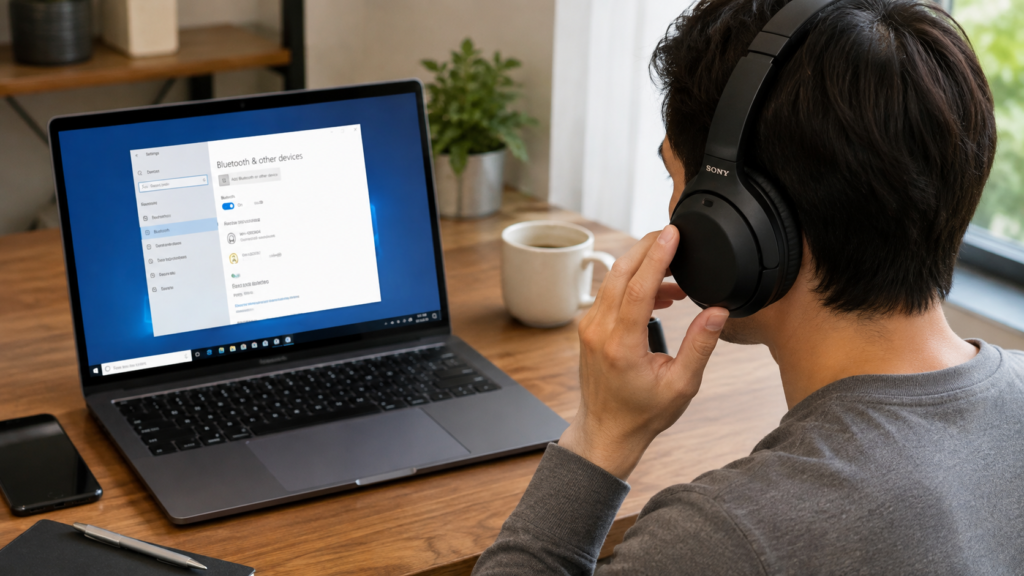
With pairing mode active, connecting on a Windows machine only takes a few clicks. Open the Start menu, head into Settings, and select Bluetooth & Devices, which may simply appear as “Devices” on older versions of Windows. Make sure the Bluetooth toggle is switched on, since it’s easy to overlook this step if it was previously disabled to save battery or reduce interference with other wireless accessories.
Next, click Add device, choose the Bluetooth option from the connection types presented, and give your laptop a few seconds to scan for nearby signals. Your Sony headphone model name should appear in the results list; selecting it initiates the final handshake, and Windows will display a confirmation once the connection succeeds. If the headphones don’t appear right away, double-check that pairing mode hasn’t timed out, and try refreshing the device list before starting the search over again.
Connecting Sony Headphones to a Mac Laptop
MacOS offers an equally straightforward path to connect Sony headphones to a laptop, though the menu labels differ slightly from what Windows users see. Click the Apple icon in the top-left corner of the screen and choose System Preferences, or System Settings on more recent macOS releases, then locate Bluetooth within the sidebar navigation options.
Confirm that Bluetooth is toggled on, then scan the list of nearby devices for your Sony headphone model name. Once it appears, click Connect, and macOS typically finalizes the pairing within just a few seconds. Audio output should switch automatically once the connection completes, though you always have the option to manually select the headphones from the sound icon in the menu bar if the system doesn’t switch outputs on its own right away.
Model-Specific Pairing Notes
While the fundamentals of how to connect Sony headphones to a laptop stay consistent across the lineup, certain models bring a few extra conveniences worth knowing about. The WH-1000XM4, XM5, and XM6 all support multipoint connections, which means the headphones can remain linked to two separate devices simultaneously, letting you jump between a laptop and a phone without repeating the pairing sequence each time you switch.
More affordable models, including the WH-CH520, generally support only a single active Bluetooth connection at a time. That means switching from a laptop to a phone requires disconnecting from one device before pairing with the other. Regardless of which model you own, the underlying Bluetooth pairing steps covered earlier remain identical, so there’s no need to memorize a different process for each headphone in your collection.
Troubleshooting Common Connection Problems
If your Sony headphones won’t show up in the device list or keep dropping the connection shortly after pairing, a handful of common culprits are usually to blame. Start by checking whether the headphones are still actively linked to another device nearby, since most Bluetooth accessories can only maintain one active connection unless multipoint support is specifically enabled. Disabling Bluetooth on other nearby gadgets often resolves the issue instantly.
Outdated Bluetooth drivers on the laptop itself are another frequent source of frustration. Running a Windows Update or macOS Software Update can quietly resolve connectivity glitches that have nothing to do with the headphones. If the problem continues, try removing or “forgetting” the existing Bluetooth pairing profile from your laptop’s settings menu entirely, then repeat the full pairing sequence again from scratch to rule out a corrupted connection record.
Tips for a Stable Long-Term Connection
To keep your wireless experience smooth well beyond the initial setup, make it a habit to update your headphone firmware using the Sony Headphones Connect app on your smartphone. These updates frequently include Bluetooth stability improvements that solve intermittent dropouts, something a laptop-side fix alone often can’t address. It only takes a couple of minutes and can prevent repeat connection issues from resurfacing down the road.
If your specific model supports multipoint pairing, take full advantage of it so you’re not forced to reconnect Sony headphones to your laptop every single time you switch away from your phone. Keeping both your laptop’s Bluetooth drivers and your headphones’ firmware current remains the single most reliable habit for maintaining a stable, long-lasting wireless connection between the two devices over time.
Read More: https://techustime.co.uk/how-to-open-task-manager-in-laptop/
FAQs
How do I connect my Sony WH-1000XM4 to my computer?
Hold the power button for five to seven seconds until the light flashes blue, then open your computer’s Bluetooth settings, select add device, and choose the WH-1000XM4 from the discovered list.
Why can’t I connect my Sony headphones to my laptop?
The most common reasons include the headphones being paired elsewhere already, outdated Bluetooth drivers on the laptop, or pairing mode timing out before the connection completes on your end.
How do I put my Sony headphones in pairing mode?
Power the headphones off first, then press and hold the power button for roughly five to seven seconds until the indicator flashes rapidly or a voice prompt announces pairing mode.
How do I connect my Sony WH-CH520 to my laptop?
Activate pairing mode with the power button, then add the headphones as a new Bluetooth device through your laptop’s settings menu, following the same steps used for other Sony models.
Can I connect Sony headphones to a laptop without Bluetooth?
Some Sony models include a wired audio cable for a physical connection, but Bluetooth pairing remains the standard, most convenient method for linking headphones to a laptop.
Do I need special software to connect Sony headphones?
No additional software is required for basic Bluetooth pairing, though installing the Sony Headphones Connect app is helpful for firmware updates and adjusting audio settings.
How do I switch my Sony headphones to a different device?
Disable Bluetooth on the currently connected device or remove the headphones from its paired list, then put the headphones back into pairing mode to link them elsewhere.
Conclusion
Ultimately, learning how to connect Sony headphones to a laptop comes down to two core steps: activating pairing mode properly and navigating your operating system’s Bluetooth menu correctly. Both Windows and Mac complete the process in well under a minute once pairing mode is active, and the vast majority of connection failures trace back to outdated drivers or headphones still tethered to another nearby device. Keep this guide handy, and future reconnections will take only seconds.