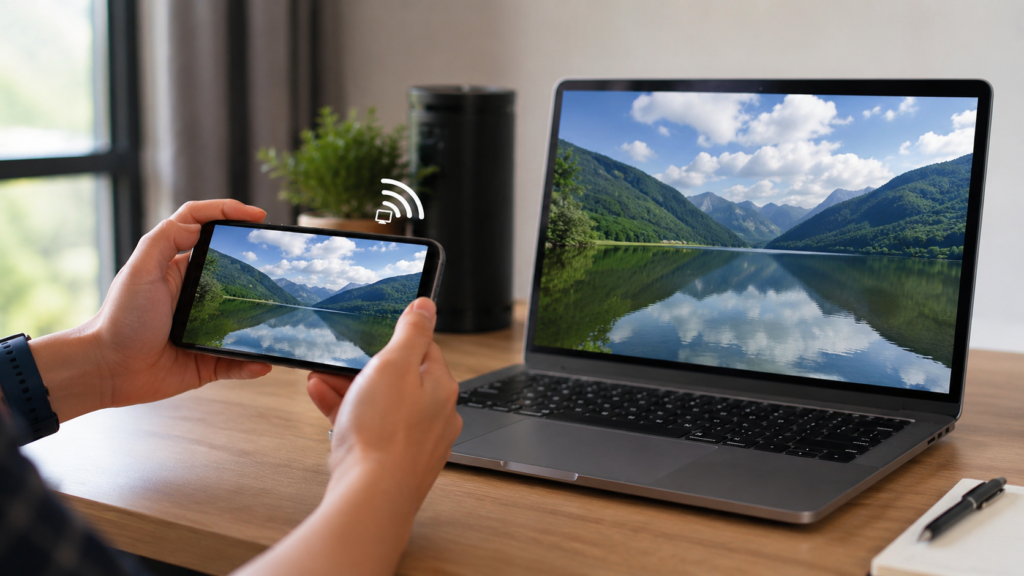

There’s a moment in almost every meeting, classroom, or living room hangout when a tiny phone screen just isn’t enough. Maybe you’re demoing a mobile app to a client, walking a relative through a tricky settings menu, or simply want to enjoy a video on something bigger than your palm. Knowing how to cast mobile screen on laptop turns that small display into a shared, comfortable viewing experience without anyone hunching over a six-inch panel. It’s one of those quietly useful skills that pays off far more often than people expect once they actually learn it.
The encouraging part is that both Android and iPhone owners can mirror their screens onto a Windows or Mac laptop, and in most cases, no extra app is required at all. This guide breaks down every native method available in 2026, alongside dependable third-party alternatives, so you can match the right approach to your specific combination of devices. Whether you’re a Windows loyalist, a Mac devotee, or juggling both, there’s a path forward that fits your setup.
Screen Mirroring vs Screen Casting: Clearing Up the Confusion
People throw around “mirroring” and “casting” as if they’re the same thing, but there’s a meaningful difference worth understanding before you try to cast mobile screen on laptop for the first time. Mirroring duplicates your phone’s entire display in real time, showing every notification, app switch, and menu exactly as it appears on your handset. Casting, on the other hand, can stream a single piece of content—like a video or a browser tab—without exposing your whole interface, which is handy when privacy or simplicity matters more than a full replica.
Under the hood, this wireless magic relies on protocols such as Miracast, Wi-Fi Direct, Samsung’s Smart View, or Apple’s AirPlay, and which one you use depends entirely on your device brand. Before attempting any connection, confirm that your phone and laptop share the same Wi-Fi network, that both are running current software, and that your laptop’s hardware actually supports wireless display output. It’s also worth remembering that a wired USB connection tends to be more stable and lag-free, while wireless offers freedom of movement—for most everyday situations, wireless remains the more practical and popular choice.
Casting an Android Phone to a Windows Laptop Without Any App
Windows laptops ship with a built-in Wireless Display feature, which makes this one of the most straightforward ways to cast mobile screen on laptop when you’re using an Android device. Begin by opening Settings on your PC, heading into System, and selecting “Projecting to this PC.” If that option doesn’t appear right away, you can add it manually through Optional Features by searching for “Wireless Display” and installing it in just a couple of clicks.
Once the feature is installed, adjust the dropdown menus to “Available everywhere” or “Every time a connection is required,” then click the prompt to launch the wireless display receiver. This opens a window on your laptop signaling that it’s ready and listening for an incoming connection. On the Android side, swipe down to reveal Quick Settings and tap Cast, Smart View, or Screen Mirroring—the exact wording shifts depending on whether you own a Samsung, Pixel, or another brand. Select your laptop from the list of nearby devices, and within seconds the mirroring session should begin, assuming both devices remain on the same network throughout.
Mirroring an iPhone Screen to a Windows Laptop
iPhones don’t natively speak Miracast, so getting them to cast mobile screen on laptop hardware running Windows requires a slightly different strategy than Android does. Apple built AirPlay specifically for its own ecosystem, and since that protocol isn’t baked into Windows, you’ll need a workaround to bridge the two platforms successfully. This isn’t a dealbreaker, though—it just means picking the right tool for the job.
The most dependable route is installing a dedicated AirPlay receiver application on your Windows laptop, which then appears as a mirroring target when you open Control Center on your iPhone and tap Screen Mirroring. A second option involves casting an individual browser tab through Chrome or Edge, which works well for sharing specific web content rather than mirroring your entire screen. A third possibility is using a Mac as a middle step if one happens to be available, since Apple’s own hardware supports AirPlay natively without any extra installation. For the average iPhone-on-Windows user, though, a trustworthy AirPlay receiver app remains the simplest long-term solution.
Connecting a Mobile Device to a Mac Laptop
If you’re fully inside Apple’s ecosystem, mirroring an iPhone to a Mac is refreshingly effortless thanks to native AirPlay integration built directly into macOS. All it takes is opening Control Center on your iPhone, tapping Screen Mirroring, and choosing your Mac from the list of nearby devices—there’s no software to download and nothing extra to configure. It’s arguably the smoothest version of this entire process across any device pairing.
Android users hoping to cast mobile screen on laptop hardware made by Apple face a bit more friction, since Macs don’t include Miracast support out of the box. In these cases, a third-party mirroring app becomes essentially mandatory rather than optional. Some people turn to cable-based connections or QuickTime-based workarounds instead, but these methods tend to be clunkier and less convenient than a proper wireless app built for cross-platform mirroring between Android and macOS.
Reliable Third-Party Apps Worth Trying
When the built-in tools fall short—or you simply want more features—third-party apps step in to fill the gap nicely. Popular options include LetsView, ApowerMirror, Vysor, and Screen Mirror, each offering convenient QR-code pairing, smoother streaming quality, and broad cross-platform compatibility spanning Android, iPhone, Windows, and Mac. These apps have matured significantly over the past few years and now rival native tools in reliability.
Third-party solutions are especially useful for older laptops that lack native wireless display support, for situations where Wi-Fi Direct connections feel unstable, or for anyone who wants bonus functionality like screen recording, remote control, or file transfer bundled alongside basic mirroring. Choosing an app over built-in tools ultimately comes down to weighing convenience against added capability, and for many users, the extra features tip the scale decisively in the app’s favor.
Fixing Common Casting Problems
Even with the correct steps followed carefully, casting doesn’t always cooperate on the first attempt. If your laptop refuses to show up as an available device, double-check that both devices are connected to the same Wi-Fi network and confirm that Wireless Display is properly installed and enabled within Windows settings. This single check resolves a surprising number of connection failures.
Lag, buffering, or grainy video quality usually traces back to weak Wi-Fi signal strength or excessive distance between your phone and laptop. Switching from a 2.4GHz network to a 5GHz one can noticeably sharpen performance and reduce stutter. Firewall or antivirus software blocking the connection is another frequent culprit worth investigating in your security settings, and if the Wireless Display feature seems to be missing entirely, revisiting Optional Features in Windows will usually confirm whether it needs reinstalling. Restarting both devices often clears up temporary glitches that quietly sabotage pairing attempts.
Getting the Smoothest Mirroring Experience
For the best possible results, prioritize a 5GHz Wi-Fi connection over 2.4GHz whenever your router supports it, since the higher bandwidth translates directly into less interference and steadier streaming. Keeping both your phone’s and laptop’s operating systems and drivers fully updated also helps prevent the compatibility hiccups that tend to surface with outdated software during setup.
Reducing physical distance and clearing obstacles between your devices helps maintain a stronger, more consistent wireless signal for the duration of your session. Closing unnecessary background apps on your phone frees up processing power too, which translates into smoother, less choppy mirroring—particularly noticeable during video playback or mobile gaming sessions where every dropped frame is obvious.
Read More: https://techustime.co.uk/upgrade-oxzep7-python/
FAQs
Can I cast my phone screen to a laptop without Wi-Fi?
Yes, a USB cable paired with compatible software works fine, though most modern methods lean on wireless connections for greater convenience and flexibility.
Is Miracast free to use on Windows 11?
Yes, Miracast-based Wireless Display comes built into Windows at no extra cost, requiring no purchase or subscription whatsoever.
Why isn’t my Android phone detecting my laptop for casting?
This typically happens when both devices aren’t sharing the same Wi-Fi network, or when the Wireless Display feature hasn’t been enabled on the laptop yet.
Can I mirror my iPhone to a Windows laptop without installing an app?
Not natively—iPhones require a dedicated AirPlay receiver app on Windows since Apple’s AirPlay protocol isn’t built into the operating system.
Does casting my screen drain phone battery faster?
Yes, mirroring keeps your display continuously active and relies on steady Wi-Fi usage, which drains battery somewhat faster than typical phone use.
What’s the difference between screen mirroring and screen extending?
Mirroring duplicates your phone’s screen exactly as-is, while extending would treat the laptop as additional workspace—though true extending isn’t commonly supported for phone-to-laptop setups.
Can I cast my phone to a laptop using a USB cable instead of Wi-Fi?
Yes, several apps support wired mirroring over USB, often delivering a more stable, lag-free connection than wireless alternatives can match.
Final Thoughts
Learning how to cast mobile screen on laptop doesn’t need to feel complicated once you know which method fits your devices. Android users benefit enormously from Windows’ built-in Wireless Display feature, while iPhone owners typically need either an AirPlay receiver app or access to a Mac for the smoothest native experience possible. Third-party apps remain a solid backup option for older hardware or anyone chasing extra functionality beyond basic mirroring.
Whichever path you choose, success comes down to matching the right tool to your specific device combination and being patient through the initial setup. Bookmark this guide, try the method that fits your situation today, and enjoy a bigger, more comfortable view of your phone’s content right on your laptop screen from now on.