
Recording your screen used to mean choosing between clunky trial software or an expensive subscription, but that trade-off has quietly disappeared. Today’s best free screen recording software captures full HD footage, cleanly syncs audio, and exports without a logo plastered across your video. Whether you’re documenting a bug, teaching a course, or narrating a product demo, there is a free tool built for exactly that job, and you rarely have to compromise on quality to use it.
This guide breaks down ten of the strongest free screen recorders available in 2026, tested across Windows, Mac, and Chrome. Instead of a generic list, each entry explains who the tool actually suits, what limitations to expect on the free tier, and where it outperforms the competition. By the end, you’ll know exactly which recorder fits your workflow, your platform, and your plans for sharing the finished video.
What to Look for in Free Screen Recording Software
Before downloading anything, it helps to know which features separate a genuinely useful free tool from one that quietly pushes you toward a paid upgrade. The biggest factor is recording length. Some free tools cap clips at five or fifteen minutes, which is fine for short demos but frustrating for longer tutorials or webinars. Always check the time limit first, since it affects your workflow more than almost any other feature on this list.
Audio handling deserves equal attention. Strong tools let you capture system audio and microphone input as separate tracks, which matters enormously when you’re narrating over app sounds or music. Beyond audio, consider webcam overlay support, basic trimming tools, and export flexibility across formats such as MP4 and GIF. A recorder that nails these fundamentals will serve you far better long-term than one chosen purely because it’s the first result in a search.
Best Free Screen Recorders for Windows
Windows users have the widest selection of free tools, starting with OBS Studio, an open-source tool with no watermark, no time limit, and professional-grade scene composition. It has a steeper learning curve than lightweight alternatives, but streamers, educators, and advanced creators consistently rank it as the most capable free option across platforms. ShareX is a close second, offering deep automation and export customization for users who want granular control over their recording pipeline.
For simpler needs, Windows 10 and 11 include Xbox Game Bar built in, requiring no download or signup to start recording instantly. Its main drawback is that it captures only individual app windows, not your full desktop. Bandicam rounds out the Windows lineup with excellent performance for high-FPS gameplay capture. However, its free version includes a watermark and a recording time cap that serious gamers will eventually want to remove.
Best Free Screen Recorders for Mac and Chrome
Mac users get a dependable starting point with QuickTime Player, preinstalled on every device and capable of clean, no-frills screen capture with no setup required. It lacks advanced editing tools, but for quick recordings, it remains one of the most convenient free options for Apple users. ScreenRec works well as a cross-platform alternative, capturing screen, webcam, and system audio while automatically generating a shareable link the moment you finish recording.
Chrome and Chromebook users benefit from browser-based tools that require no installation. Screencastify is the standout here, working seamlessly in the browser and especially appealing to educators and students who need quick, shareable recordings. Loom offers similar cloud-based convenience with built-in video hosting, though its free tier limits video length and the total library size. CapCut’s web recorder rounds things out nicely, pairing capture with genuinely useful editing tools for creators repurposing clips for social platforms.
Free Screen Recorders Compared
ToolPlatformWatermarkTime LimitWebcamEditing
OBS Studio Windows/Mac/Linux No None Yes Basic
ScreenRec Windows/Mac No None Yes No
Loom Windows/Mac/Chrome No Limited Yes Basic
Bandicam Windows Yes (free) Limited Yes No
Xbox Game Bar Windows No None No No
QuickTime Mac No None No Basic
ShareX Windows No None No Basic
Screencastify Chrome No Limited Yes Basic
Icecream Screen Recorder Windows/Mac Limited Limited Yes Basic
CapCut Windows/Mac/Web No None Yes Advanced
This comparison makes the trade-offs easy to scan at a glance, especially the split between tools with unlimited recording time and those that cap your free usage. Notice that most of the fully unlimited options, including OBS Studio, ScreenRec, Xbox Game Bar, and QuickTime, also skip the watermark entirely, which is exactly the combination most casual and professional users are searching for when comparing free screen recording software.
Icecream Screen Recorder deserves a mention for its clean, beginner-friendly interface, even though its free plan carries some export and duration restrictions. It’s a solid pick for casual users who want a quick, uncomplicated way to capture their screen without having to learn a complex toolset. Weigh these limitations against how often you’ll actually hit them before ruling any tool out based on the table alone.
How to Choose the Right Free Screen Recorder
Your ideal tool depends heavily on what you’re actually recording. Gamers and streamers get the most value from OBS Studio or Bandicam, since both are built to handle high-performance capture without dropping frames. Teams that need fast internal communication should lean toward Loom or ScreenRec, which prioritize instant sharing over advanced editing. Educators working primarily inside a browser will find Screencastify far more practical than a desktop install.
Technical comfort level matters just as much as use case. Beginners generally do better starting with built-in tools like QuickTime or Xbox Game Bar, since there’s nothing to configure before you start recording. Advanced users who want automation, custom hotkeys, or export chains will get more out of ShareX or OBS Studio. Matching the tool to your actual habits, rather than picking whatever ranks highest, is what determines whether you stick with it long-term.
How to Record Your Screen for Free, Step by Step
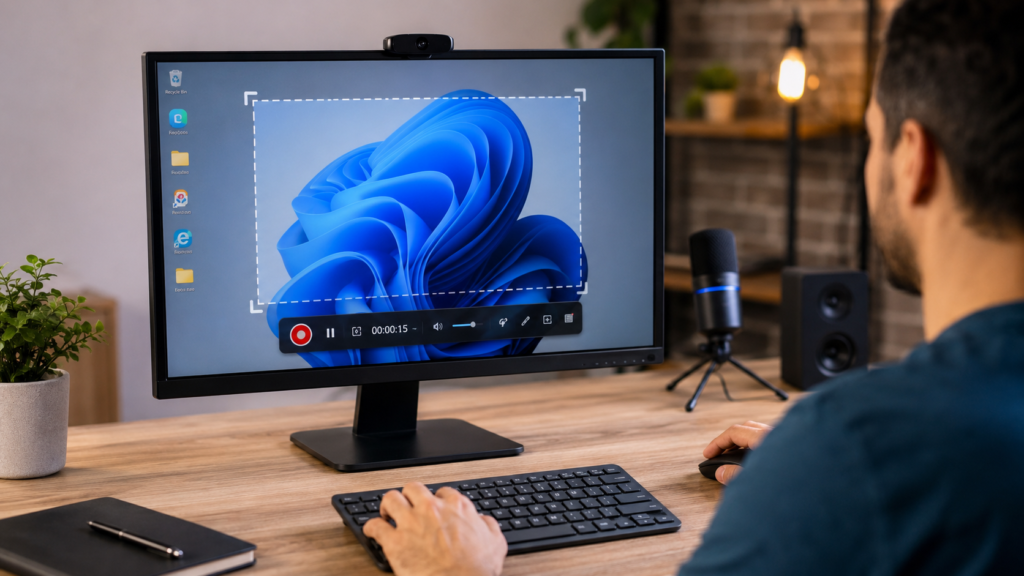
Regardless of which tool you pick, the core recording process stays remarkably consistent across platforms. Start by opening your chosen app or browser extension, then select your recording area, whether that means the full screen, a single application window, or a custom region. Next, enable your microphone, webcam, and system audio as needed for your project, since leaving unnecessary sources on can clutter your final export.
Once your settings are confirmed, hit record and work through your walkthrough naturally, without worrying about small mistakes you can trim out later. When you’re finished, stop the recording, preview the footage, and cut any unwanted sections if your tool supports basic editing. Finally, export the file locally or generate a shareable link, depending on which free screen recording software you’re using and how your audience prefers to receive it.
Mistakes to Avoid With Free Screen Recorders
The most common mistake is skipping the fine print and only discovering a watermark or time cap after finishing an important recording. Always test a short clip first to confirm the free tier actually meets your needs, especially before relying on a tool for something time-sensitive, client-facing, or difficult to reshoot. A thirty-second test recording takes almost no time and can save you from redoing an entire tutorial.
Audio sync problems are another frequent frustration, particularly with lightweight tools running on older or resource-constrained hardware. It’s also worth checking cloud storage limits ahead of time if you’re using a hosted platform like Loom, since running out of space mid-project can interrupt an otherwise smooth recording session. Reviewing export formats before you start saves additional headaches, especially if your final video needs to work on a specific platform like YouTube or an internal LMS.
Read More: https://techustime.co.uk/network-monitoring-software/
FAQs
What is the best free screen recording software with no watermark?
OBS Studio and ScreenRec are the strongest watermark-free options, both offering unlimited recording time and full-featured exports without ever branding your footage with a logo.
Is there a completely free screen recorder with no time limit?
Yes. OBS Studio, ScreenRec, Xbox Game Bar, QuickTime, ShareX, and CapCut all allow unlimited recording length on their free tiers, unlike Loom, Bandicam, and Screencastify.
What is the best free screen recorder for Windows 10 or 11?
Xbox Game Bar is the fastest built-in option for quick captures, while OBS Studio offers far more control for users who need advanced recording features.
What is the best free screen recorder for Mac?
QuickTime Player is preinstalled and reliable for basic recordings, while OBS Studio offers more advanced features for Mac users seeking extra flexibility.
Can I record my screen and webcam at the same time for free?
Yes. OBS Studio, ScreenRec, Loom, Bandicam, Screencastify, Icecream Screen Recorder, and CapCut all support simultaneous screen and webcam recording on their free plans.
Is OBS Studio really free, or are there hidden costs?
OBS Studio is completely free and open-source, with no premium tier, subscription, or hidden paywall attached to any of its core recording features.
What’s the best free screen recorder for online meetings or tutorials?
Loom and ScreenRec are both built for fast, shareable communication, making them ideal for tutorials, feedback loops, and asynchronous meeting recaps.
Do free screen recorders work on Chromebooks?
Yes. Browser-based tools like Screencastify work directly inside Chrome, making them a practical choice for Chromebook users who can’t install desktop software.
How do I record my screen without downloading any software?
Browser-based options like Screencastify or CapCut’s web recorder let you capture your screen instantly without installing a desktop application.
Is it safe to use free screen recording software?
Generally yes, as long as you download tools from official websites, review requested permissions carefully, and check the privacy practices of any cloud-based platform you use.
Conclusion
Free screen recording software has genuinely closed the gap with paid alternatives, and for most everyday use cases, there’s no real reason to pay for a subscription anymore. OBS Studio remains the strongest pick for power users who want full control, ScreenRec excels at fast, link-based sharing, and Loom continues to lead for team-based, asynchronous communication.
Rather than choosing based on popularity alone, match your pick to your actual workflow. Try two or three tools from this list, test how each handles your specific recording needs, and settle on the free screen recorder that fits your platform, your audience, and how you like to share your work.