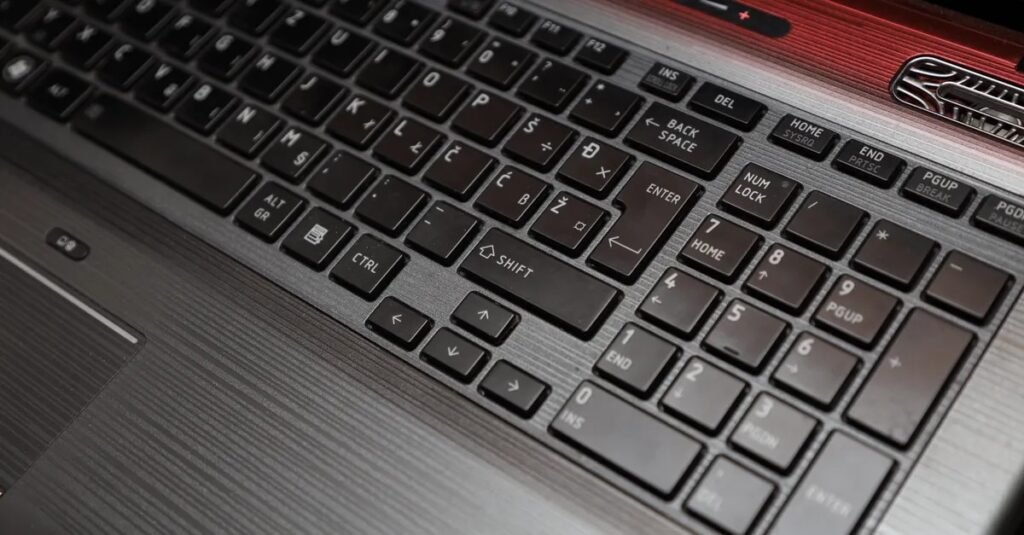

If your laptop keyboard types wrong characters, take a breath. You press @ and get ". You type letters and numbers show up. It looks like broken hardware, but it almost never is. One small setting got flipped by accident, and a two minute fix puts everything back to normal.
Below are the 9 fixes that actually solve this, ordered from most common to rarest. Work through them in order.
Why Your Laptop Keyboard Types Wrong Characters
Wrong characters come from the software between your key presses and the letters on screen. When Windows uses the wrong input language, the wrong keyboard layout, or the wrong typing settings, it translates perfectly good key presses into wrong output. The keys are doing their job. Windows is just reading them wrong.
The usual suspects: Num Lock turned on (letters come out as numbers), the wrong keyboard layout selected (US vs UK swaps @ and "), an accidental layout switch via Ctrl + Shift, an accessibility setting like Filter Keys, a bad driver after a Windows update, or a macro app remapping keys. If letters are turning into numbers, skip to Fix 1. If @ and " are swapped, jump to Fix 2.
Fix 1: Turn Off Num Lock
On many smaller laptops there is no separate number pad. The letter keys U, I, O, J, K, L, and M double as one, and Num Lock decides whether they type letters or numbers. With Num Lock on, typing U I O gives you 4 5 6. This catches people constantly on Dell, HP, Lenovo, and Acer laptops.
Press the key labeled Num Lock or NumLk once, then test. On many models you must hold Fn while pressing it (Fn + Num Lock). If the problem returns after each restart, look for a Num Lock startup setting in your BIOS.
Fix 2: Switch the Keyboard Layout Back to the Right One
This fixes the classic swapped-symbols problem. A US QWERTY keyboard puts @ above the 2 key. A UK QWERTY keyboard puts " there instead. If Shift + 2 gives you ", you are typing on the wrong layout.
Press Windows + Space. A popup shows every installed layout. Pick the one matching your actual keyboard, which on most US laptops is "English (US) US". To stop it flipping back, open Settings (Windows + I), go to Time & language > Language & region > Language options, and delete the extra keyboards under Keyboards. Also check which language tops the "Preferred languages" list, since Windows defaults to its layout.
Fix 3: Stop Accidental Layout Switching with Ctrl + Shift
Windows has a built-in shortcut, Ctrl + Shift (or Alt + Shift on some setups), that switches keyboard layouts. Most people discover it the hard way: they press Ctrl + Shift for a game or app shortcut, and their keyboard "breaks" for no reason.
Disable it: Settings > Time & language > Typing > Advanced keyboard settings > Input language hot keys. Select Between input languages, click Change Key Sequence, and set it to Not Assigned. If you genuinely type in two languages, keep the shortcut but know it is there.
Fix 4: Turn Off Filter Keys and Sticky Keys
Windows accessibility settings can quietly change typing behavior. Filter Keys ignores brief or repeated keystrokes. Sticky Keys changes how Shift, Ctrl, and Alt work. Mouse Keys moves the mouse pointer with the keyboard instead of typing. Any of these can make a healthy keyboard type strange things.
Open Settings > Accessibility > Keyboard (Windows 10: Ease of Access > Keyboard) and turn off Sticky Keys, Filter Keys, Toggle Keys, and Mouse Keys. Then disable each setting’s activation shortcut, especially the Filter Keys shortcut, which a long Shift press can trigger by accident.
Fix 5: Run the Keyboard Troubleshooter
Windows 11 has a built-in troubleshooter that catches common keyboard problems in about a minute: Settings > System > Troubleshoot > Other troubleshooters > Keyboard > Run. In Windows 10 the path is Settings > Update & Security > Troubleshoot > Additional troubleshooters > Keyboard. It will not fix everything on this list, but it is free and fast, so run it before touching drivers.
Fix 6: Update or Reinstall the Keyboard Driver
If the wrong characters started right after a Windows update, the driver is a strong suspect. Updates occasionally overwrite or corrupt keyboard drivers, and a bad driver can misreport what your keyboard looks like.
Try updating first: open Device Manager, expand Keyboards, right-click your keyboard, and choose "Search automatically." If that changes nothing, uninstall and restart: right-click the keyboard in Device Manager, choose Uninstall device, then restart. Windows reinstalls a fresh driver on its own.
Fix 7: Check for Keyboard Software Conflicts
Background programs can intercept your key presses before Windows sees them. The usual suspects are Logitech Options or Logi Options+, Razer Synapse, Corsair iCUE, AutoHotKey scripts, and any macro or text-expansion tool. A macro profile loaded for the wrong game is a classic source of "my keyboard is possessed."
Close those programs completely (check the system tray and Task Manager, not just the main window) and type again. If the characters return to normal, reopen the programs one by one until the problem comes back, then fix that app’s key-remapping settings and turn off its "start with Windows" option.
Fix 8: Test the Keyboard Outside Windows
Restart your laptop and open the BIOS or UEFI settings (usually F2, F10, Del, or Esc on the first boot screen). Try typing there. If keys type correctly in BIOS but wrong in Windows, you have a software problem and one of the fixes above will solve it. If they type wrong in BIOS too, you are looking at hardware: a damaged membrane, a loose ribbon cable, or debris under the keys. My guide on a laptop keyboard not working in Windows 11 covers the physical checks from there.
Fix 9: Run a Malware Scan
This is rare, but keyloggers and rogue scripts can cause ghost keystrokes or wrong characters. If everything above failed, run a full scan with Windows Security: open it from the Start menu, go to Virus & threat protection > Scan options > Full scan. While you are at it, open Task Manager with Ctrl + Shift + Esc and look for processes you do not recognize. Malware is an uncommon cause here, but it is the next place to look when nothing else explains the problem.
When to Suspect a Hardware Problem
Think hardware when the same wrong characters appear in BIOS as well as in Windows, when only specific keys are wrong and cleaning under them changes nothing, or when there was a recent spill or drop. An external USB keyboard that works fine confirms it. For a built-in keyboard, a repair shop handles the replacement. My guides on some keys not working on a laptop keyboard and general laptop troubleshooting pick up from here.
Frequently Asked Questions
Why does my laptop keyboard type numbers instead of letters?
Num Lock is on, and your laptop has an embedded number pad. Press Num Lock (or Fn + Num Lock) to turn it off, and U, I, O, J, K, L, and M will type letters again.
Why do my @ and " keys type the wrong way around?
Your layout does not match your physical keyboard. US layout puts @ above the 2 key; UK layout puts " there. Press Windows + Space to pick the right layout, then remove the extras in Settings > Time & language > Language & region.
How do I reset my keyboard layout back to normal in Windows 11?
Open Settings > Time & language > Language & region, open Language options for your language, and remove every layout you do not use. Keep only the one matching your keyboard (usually US). Then disable the Ctrl + Shift input-switching shortcut.
Can a virus make my keyboard type wrong characters?
It is possible but uncommon. If every software fix above has failed, run a full scan with Windows Security and check Task Manager for unknown processes before assuming hardware failure.
Conclusion
A laptop keyboard that types wrong characters feels like a hardware disaster but is almost always just Windows reading your keyboard wrong. Start with the two fixes that solve most cases: turn off Num Lock, and switch the layout back to the one matching your actual keys. Then work through Filter Keys, the accidental layout shortcut, the driver, and software conflicts. Nine times out of ten, the answer is somewhere on this list.