
The AULA F75 is a popular budget mechanical keyboard, but its real personality only appears once you install the right AULA F75 software. Out of the box it types well, yet the software unlocks key remapping, lighting control, macros, and volume knob settings. The trouble is that several versions exist, and many websites claim to host the download. This guide shows you where to find the correct tool and how to install it.
Whether you own the standard F75, the F75 Pro, or the F75 Max, the process follows the same logic: identify your model, download from a trusted source, connect the keyboard properly, and customize. Each section below is written to stay useful as new versions appear, so you can return to it whenever you need a refresher or a quick fix.
What the Software Actually Does
In simple terms, this utility is the control panel for your keyboard. Many shoppers search for the AULA F75 driver, and for this keyboard the words driver and software describe the same tool: a program that communicates with the keyboard and stores your preferences directly on it. Because those settings live on the keyboard itself, they usually stay in place even when you plug it into a different computer.
The main features include key remapping, RGB lighting effects, macro recording, and volume knob customization. The Max model adds screen personalization, and firmware tools may be offered for supported versions. The important point is that none of this is required for everyday typing. The keyboard works perfectly well without the program, so treat it as an optional upgrade for people who like a setup that feels personal.
Which Version Do You Own
Choosing the correct version is the most important step, because the wrong download will simply fail to detect your keyboard. The F75, F75 Pro, F75 Max, and the EPOMAKER x AULA F75 are closely related, but they are not identical, and each may require its own driver package. Layout matters too, since ANSI and ISO editions can be listed separately on download pages.
To confirm your model, check the retail box, the label on the underside of the keyboard, or your original order page. Once you know the exact name, match it against the driver list on the official download page. If two options look similar, choose the one that mirrors your keyboard’s full name and layout. Spending one minute on this check can save an hour of confusion later.
Where to Download AULA F75 Software Safely
Start with the official AULA download page, where drivers are grouped by model. AULA also offers the AULA HUB, a browser-based web driver that needs no installation and runs in Google Chrome or Microsoft Edge. Owners of the Epomaker edition can use the dedicated EPOMAKER x AULA F75 driver page instead. These routes give you the correct files without the risks of unknown websites.
Safety deserves real attention here. Avoid random file-sharing sites, repackaged installers, and any page that asks for payment or personal details in exchange for a free tool. Check that the file name matches your model, scan the download with your antivirus program, and be suspicious of files that look unusually small or oversized. If a site feels unfamiliar, close it and return to the official source.
How to Install the Software on Windows
Before installing, connect the keyboard with a USB-C cable or the 2.4GHz dongle, because the program will not detect a Bluetooth connection. Then press FN + W to switch the keyboard into Windows mode. These two preparations solve most setup problems before they begin, so do not skip them, even if you are in a hurry. A few seconds here prevents the most common error.
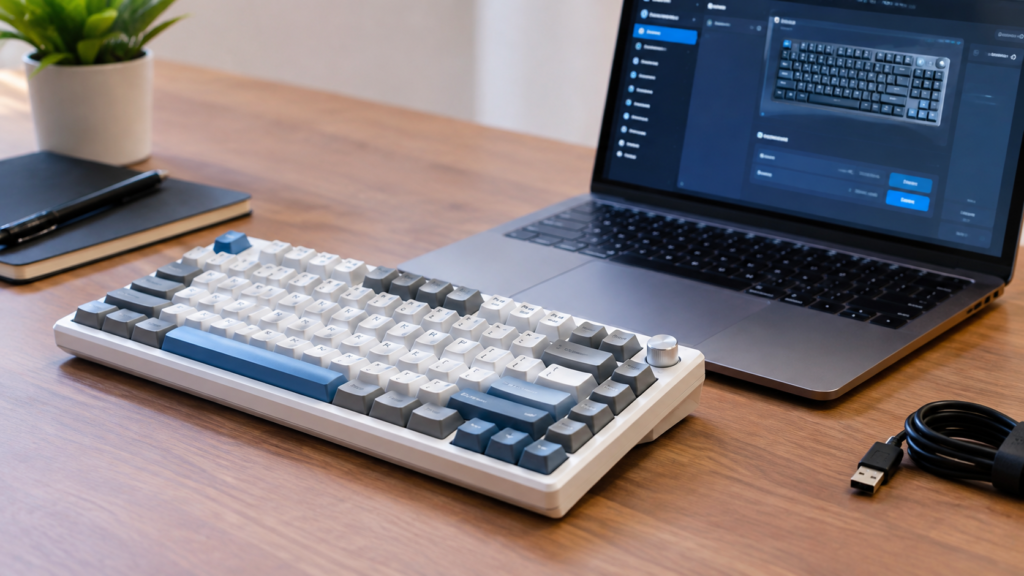
Next, download the zip file, extract it to a folder, right-click the setup file, and choose Run as administrator. Follow the prompts on Windows 10 or 11, then launch the app. If your keyboard appears on screen with its layout and lighting options, the installation worked, and you can begin customizing. If nothing appears, jump to the troubleshooting section below.
Does It Work on Mac
Mac users often ask whether this tool supports macOS. Support can differ by model and version, so always check the official download page for the latest status before assuming anything. The browser-based AULA HUB is a practical place to start, because it runs inside Chrome or Edge instead of relying on a Windows installer.
If the web driver does not recognize your keyboard, switch it to Mac mode using the key combination listed in your manual, and connect by cable. As a fallback, borrow a Windows PC once to set your remaps and lighting. Since those preferences are stored on the keyboard, they typically travel with it afterward, so a single session may be all you need.
Using the Main Tools Step by Step
Start with key remapping. Select the key you want to change, choose a new function from the list, and save. This is ideal for turning rarely used keys into shortcuts. Then explore RGB lighting, where you can adjust effects, colors, speed, and brightness. Subtle settings look cleaner in daily use and may also help preserve battery life on wireless models.
Macros and the volume knob come next. Record a sequence of keystrokes, assign it to a key, and trigger a complex action with one press. Some users even send hotkey combinations to a KVM switch this way. On the F75 Max, you can also upload your own image to the screen. Once you like the result, save it as a profile so you can restore it anytime.
How to Update Firmware Without Risk
Firmware updates can add fixes and improve stability, and they are usually offered on the official driver page for your exact model. Download only the file that matches your keyboard, then follow the on-screen instructions. Read the release notes if they are provided, so you understand what will change before you begin, and never use a file from an unofficial source.
Follow four simple rules: use a wired connection, never unplug the keyboard mid-update, keep your laptop charged, and back up your profile first. A failed update is rare, and interruptions are its most common cause. If the process seems stuck, wait several minutes before acting, because it can look frozen while it is still writing data to the keyboard.
Fixes When the Keyboard Is Not Detected
Most detection problems come from the connection mode. Switch to wired or 2.4GHz, press FN + W for Windows mode, and try a different USB port with a data-capable cable. Some charging-only cables power the keyboard but transfer no data, which makes the AULA F75 software behave as if nothing is plugged in.
If that fails, run the program as administrator, close other RGB or keyboard utilities that may conflict, and use Chrome or Edge for the web driver. Then confirm you downloaded the correct model and reinstall if needed. Finally, restart your PC and replug the keyboard. Working through these steps in order resolves the majority of cases without any technical skill.
Tips for Getting More From Your F75
Once everything works, keep a backup of your profile so you can restore it after a reset or firmware update. Choose calmer lighting for daily work and save the flashy effects for gaming sessions. Small habits like these keep your setup consistent and spare you from repeating the same configuration every time something changes.
Consider practical remaps as well. Gamers might place a macro on a spare key, while writers can turn the knob into a scroll or volume control. Revisit the official page every few months, since new versions and fixes appear over time. Keeping your tools current is the easiest way to avoid surprises and keep the keyboard performing at its best.
Is the AULA F75 Software Safe to Use
Yes, it is safe when you download it from the official AULA download page or use the AULA HUB web driver. The risk comes from unofficial mirrors and repackaged installers that may bundle unwanted programs. Always verify the source, scan the file with antivirus software, and avoid any site that asks for payment, unnecessary permissions, or personal details before offering a simple driver.
You also do not need the software to use the keyboard at all. The F75 works immediately for typing and basic functions, and the program only matters when you want deeper customization. Because features and versions can change, confirm details on the official website, especially for Mac support, mobile use, and firmware, and treat this guide as a starting point.
Read More: https://techustime.co.uk/develop-oxzep7-software/
Conclusion
Getting started is simple when you follow the right order: identify your exact model, download from official sources, connect by cable or 2.4GHz, switch to Windows mode, and then customize. With the correct AULA F75 software, you can remap keys, tune your lighting, and update firmware in minutes rather than hours of guesswork.
If you run into trouble, revisit the troubleshooting section and check your connection mode first, since it solves most issues. Bookmark this guide so you can return when a new version arrives, and explore related articles on switches, cleaning, and keyboard reviews to keep improving your typing experience over the long term.