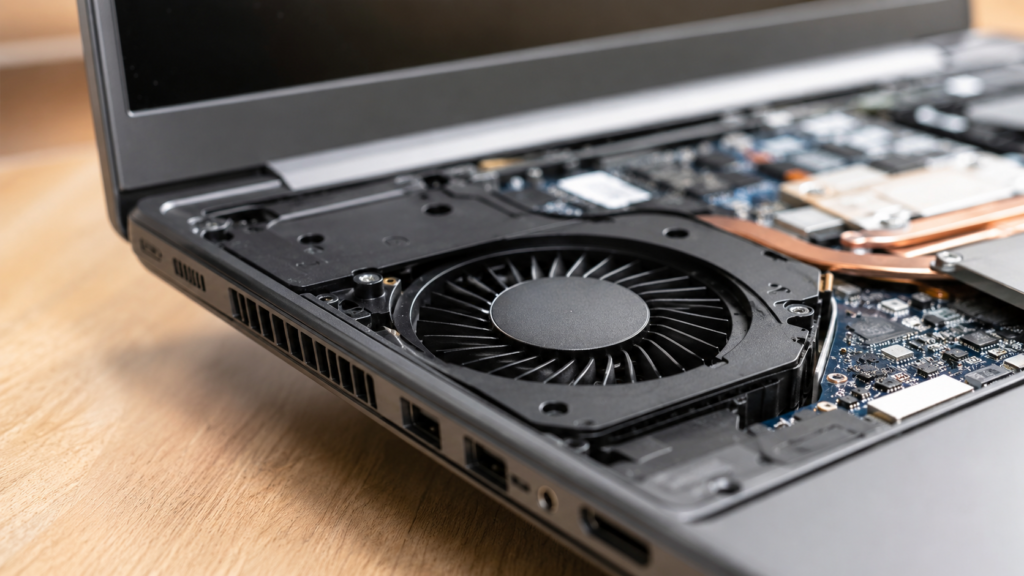

If you’ve ever been in the middle of a task and suddenly heard your laptop roar like it’s preparing for takeoff, you already know how distracting it can be. Why is my laptop fan so loud? It’s one of the most common questions laptop owners search for, and thankfully, most of the causes are simple, inexpensive, and fixable without professional help. Sometimes it’s nothing more than dust buildup; other times it’s a background app quietly eating up your processor, and occasionally it points to a genuine hardware issue that needs closer attention.
This guide walks through the eight most common reasons your laptop fan works overtime, how to determine which one applies to your situation, and the exact steps to fix each. By the end, you’ll know whether your fan noise can be solved in five minutes or whether it’s time to bring in a technician for a deeper look.
Understanding Why Laptop Fans Get Loud
Every laptop depends on a small fan paired with a heat sink to pull warm air away from the processor and graphics chip. When you’re gaming, editing video, or juggling several demanding programs at once, it’s completely normal for the fan to spin faster and louder to keep internal temperatures under control. This kind of noise usually settles down once the workload eases, so it isn’t something to worry about on its own.
The concern about why my laptop fan is so loud becomes more serious when the noise shows up during light activities like browsing the web or typing a document, or when the fan never seems to slow back down regardless of what you’re doing. Unusual sounds such as grinding, rattling, or a high-pitched whine are especially worth paying attention to, since they typically point toward a mechanical problem rather than a simple thermal response.
Dust and Debris Buildup Inside the Vents
Dust is, without question, the most frequent cause behind a noisy laptop fan. Over months of everyday use, dust, lint, and pet hair gradually settle on the intake vents and directly on the fan blades. This buildup restricts the natural airflow through the system, forcing the fan to spin faster to maintain the same cooling effect it once achieved with far less effort.
The fix here is refreshingly simple and doesn’t require any technical skill. A few short bursts of compressed air, aimed directly into the vents every two to three months, can clear most accumulated dust and restore proper airflow almost instantly. For laptops that haven’t been cleaned in over a year, a more thorough internal cleaning by a professional may be worth considering to reach dust trapped deeper inside the casing.
High CPU Usage From Background Applications
Hidden background processes, unused browser tabs, or silent auto-updates can quietly push your processor to its limits without you ever noticing until the fan kicks into high gear. This is one of the sneakier answers to the question of why my laptop fan is so loud, since nothing on your screen may look particularly demanding, even while your CPU is working overtime behind the scenes to keep everything running.
Opening Task Manager on Windows or Activity Monitor on a Mac lets you see exactly which programs are consuming the most resources at any given moment. Closing unnecessary applications, disabling startup programs you rarely use, and limiting how many browser tabs stay open simultaneously can bring your CPU usage — and the fan noise that follows it — back down to a much more manageable level within minutes.
Blocked or Obstructed Ventilation Areas
Using your laptop on soft surfaces like a bed, couch cushion, or directly on your lap is one of the most common everyday habits that leads to excessive fan noise. These surfaces cover the intake vents on the underside of the laptop, trapping heat inside the chassis and forcing the cooling system to work significantly harder than it should.
Switching to a hard, flat surface, such as a desk or table, allows air to circulate freely beneath the laptop, which can make a noticeable difference almost immediately. If you frequently work from a couch or bed, investing in a lightweight laptop stand or tray with open ventilation can preserve that comfort while still giving the fan the airflow it needs to operate quietly and efficiently.
Worn-Out Thermal Paste Between Components
The thin layer of thermal paste between your processor and its heat sink plays a critical role in dissipating heat efficiently. Over roughly two to four years, this paste naturally dries out and loses much of its effectiveness, so heat builds up faster than the system can dissipate it, and the fan compensates by running longer and louder than it used to.
Reapplying fresh thermal paste is a well-known fix among laptop technicians. It can be done either as a careful do-it-yourself project or through a professional repair service for a modest fee. Many users notice a meaningful drop in both fan noise and overall operating temperature almost immediately after completing this simple maintenance step, especially on laptops that are several years old.
Faulty or Worn Fan Bearings
When you start hearing grinding, rattling, or a persistent whirring sound instead of the usual smooth hum of airflow, the fan’s internal bearings may be wearing out. Unlike dust or software issues, this is a purely mechanical problem, and it’s one of the more definitive answers to why my laptop fan is so loud when other simple fixes haven’t made any noticeable difference.
Worn bearings generally don’t improve on their own and tend to get progressively louder and less reliable over time if left unaddressed. Fortunately, fan replacement is usually an affordable repair, and many repair shops can complete the swap quickly. Replacing the fan not only quiets the laptop but also helps protect other internal components from the excess heat a struggling fan can no longer manage effectively.
Malware or Suspicious Background Processes
Malicious software has a well-earned reputation for silently hijacking a computer’s CPU and GPU resources, often running intensive processes in the background without any visible sign on your screen. This constant hidden workload generates extra heat, pushing the fan into overdrive even when you believe your laptop is sitting completely idle.
Running a full antivirus or anti-malware scan is a straightforward way to rule this out, or confirm it, as a contributing factor. Reviewing your task manager for unfamiliar or unusually resource-intensive processes can also help you spot suspicious activity before it causes further damage. Regularly keeping your security software up to date reduces the odds of this becoming a recurring issue.
Outdated Drivers and Cooling Policy Settings
Outdated chipset, graphics, or power-management drivers can interfere with your laptop’s ability to regulate its internal temperature, sometimes causing the fan to run more aggressively than the workload requires. Manufacturers frequently release driver updates designed to improve thermal efficiency, so skipping these updates can leave your cooling system operating with outdated instructions.
Beyond drivers, Windows lets you adjust your system’s cooling policy between passive and active modes, as well as the maximum processor state in your advanced power settings. A misconfigured setting here can cause the fan to be noticeably louder than necessary. Taking a few minutes to update your drivers and review these settings is a free adjustment that often resolves excess noise.
How to Diagnose the Exact Cause
Before attempting any fix, it helps to gather some information about what’s actually happening inside your laptop. Free monitoring tools like HWMonitor or Core Temp let you check your CPU temperature and usage in real time, which quickly helps determine whether the issue is software-related or hardware-related, tied to dust, vents, or worn parts.
Pay close attention to the specific type of sound your laptop makes, as this alone offers valuable clues. A steady whooshing or rushing sound usually signals restricted airflow, while grinding or clicking noises point more directly toward mechanical wear. Because causes often overlap — dust buildup paired with high CPU usage is a particularly common combination — working through possibilities methodically saves both time and unnecessary repair costs.
Preventing Fan Noise Before It Starts
Setting a recurring reminder to clean your laptop’s vents every three to six months is one of the most effective habits you can build, particularly if you live in a dusty environment or share your space with pets that shed regularly. Consistent maintenance is genuinely the best long-term answer to the question “why is my laptop fan so loud,” since it prevents the most common cause from ever becoming a serious problem in the first place.
Beyond routine cleaning, small daily habits make a meaningful difference over time. Always use a hard, flat surface, periodically check CPU usage for any unusual activity, and keep your drivers up to date whenever updates are available. These simple, consistent practices go far beyond reactive fixes, helping your laptop run cooler, quieter, and more reliably throughout its lifespan.
Read More: https://techustime.co.uk/how-to-speed-up-old-laptop/
FAQs
Why is my laptop fan suddenly loud when it wasn’t before?
A sudden change usually points to a new background process, a recent software update, gradual dust accumulation, or an outdated driver. Checking Task Manager first, then inspecting your vents for visible buildup, is the fastest way to narrow things down.
Why are my laptop fans so loud even when I’m not doing anything intensive?
This often means a hidden background app or malware is quietly consuming CPU resources, or dust has restricted airflow enough that the fan has to run harder even during otherwise light, everyday use.
Is it okay to keep using a laptop with a loud fan?
Occasional loud bursts during heavy tasks are completely normal. Still, persistent, constant noise can place extra strain on internal components over time, potentially shortening your laptop’s overall lifespan if left unaddressed for too long.
How do I stop my laptop fan from being so loud?
Clean the vents thoroughly, close unnecessary background apps, switch to a hard flat surface, update your drivers, and review your power and cooling settings — together, these steps resolve the large majority of cases.
Why is my laptop fan loud but the laptop isn’t overheating?
This can happen with worn fan bearings, misconfigured cooling policy settings, or a fan that’s stuck running at a higher speed than necessary due to a minor software or firmware glitch.
Can dust alone cause a laptop fan to run constantly?
Yes, absolutely. Dust-clogged vents significantly restrict airflow, forcing the fan to work harder and run longer to maintain normal, safe operating temperatures inside the device.
How often should I clean my laptop’s fan and vents?
Every three to six months is a solid general guideline. However, dustier environments or households with shedding pets may benefit from cleaning slightly more often, closer to every two to three months.
Does a loud fan mean my laptop battery or motherboard is at risk?
Not directly or immediately, but sustained excess heat caused by an overworked fan can gradually accelerate wear on internal components over time, making early fixes a genuinely worthwhile investment.
Final Thoughts
A loud laptop fan almost always has a clear, identifiable explanation. In the vast majority of cases, it’s something you can resolve yourself without ever needing to visit a repair shop. From dust accumulation and background applications to blocked vents and aging thermal paste, the eight causes explored in this guide cover nearly every real-world scenario laptop owners encounter.
Start with the free, low-effort fixes first — clearing out dust, closing unnecessary background apps, and reviewing your power settings — before assuming the worst about your hardware. If the noise persists even after working through these steps, that’s a strong signal it’s time to consider professional cleaning or a fan replacement rather than simply learning to live with the noise indefinitely.