
A laptop that once felt fast can become frustrating within a few years, and most people assume the only solution is to buy a new one. Learning how to speed up old laptop performance is often far simpler than expected, involving a mix of free software adjustments and a few targeted hardware upgrades. This guide breaks down exactly what causes the slowdown and walks through the fixes that genuinely restore usable speed, without pushing you toward an unnecessary replacement.
Why Old Laptops Slow Down Over Time
Performance loss rarely comes from a single cause. Over months and years of regular use, temporary files, browser caches, and leftover installation data quietly accumulate on the hard drive, taking up space and slowing down basic file operations. At the same time, background processes multiply as more apps are installed, each one competing for limited memory and processing power that an older laptop was never designed to handle at this scale.
Aging hardware compounds the problem further. A traditional mechanical hard drive naturally becomes slower as it fills up, and outdated components can’t keep pace with modern software demands. Dust buildup inside the chassis restricts airflow, causing the processor to overheat and automatically throttle itself to prevent damage. Combined with outdated drivers, overdue system updates, or hidden malware, it becomes clear why even a well-maintained laptop eventually starts to feel sluggish during everyday tasks.
Quick Software Fixes That Cost Nothing
Before considering any purchase, it’s worth exploring free adjustments that often produce surprisingly noticeable results. Many people don’t realize how many programs quietly launch the moment their laptop turns on. Opening Task Manager with Ctrl+Shift+Esc and reviewing the Startup tab reveals which apps are set to auto-launch, and disabling the unnecessary ones can meaningfully reduce boot time while freeing up memory for the programs you actually use during your session.
Clearing temporary files is another simple but effective step. Pressing Windows Key + R and typing %temp% opens a folder filled with leftover data most users never manually clean, and deleting its contents periodically prevents unnecessary clutter from building up. Alongside this, reviewing your installed applications list and removing anything no longer used helps reclaim disk space, since forgotten software can still run in the background, quietly consuming system resources without your knowledge.
Turning off visual effects is another free improvement worth making. Searching “adjust appearance and performance” in the Start menu and selecting the best-performance option removes animations and transparency effects that look nice. Still, demand processing power an older laptop can’t always spare. Combined with the earlier fixes, this small adjustment often makes everyday navigation feel noticeably more responsive within minutes of changing the setting.
Hardware Upgrades That Deliver the Biggest Impact
When software tweaks reach their limit, targeted hardware upgrades tend to deliver the most dramatic transformation. Replacing a traditional mechanical hard drive with a Solid State Drive is consistently regarded as the single most effective upgrade available. Boot times shrink dramatically, applications open almost instantly, and file transfers complete far faster, often making a laptop that’s five or more years old feel genuinely modern again during daily use.
Increasing RAM is the second major upgrade worth prioritizing. Many older laptops shipped with minimal memory by today’s standards, which can cause noticeable slowdowns when multiple browser tabs or applications run simultaneously. Boosting memory to at least 8GB, or ideally 16GB, allows the system to multitask smoothly without the constant stuttering that frustrates users trying to work across several programs at once throughout the day.
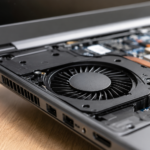
Physical maintenance plays a supporting role that’s easy to overlook. Dust accumulates inside vents and fans over time, restricting airflow and causing internal components to overheat under normal use. Using compressed air to clear dust every few months helps the processor maintain full speed rather than automatically throttling to manage rising temperatures, which is a quiet but significant contributor to everyday performance loss.
Lightweight Operating Systems for Very Old Hardware
For laptops too limited to benefit meaningfully from a RAM or SSD upgrade, switching operating systems becomes a genuinely practical option. Lightweight Linux distributions such as Zorin OS or Linux Mint are specifically designed to run smoothly on modest hardware specifications that would otherwise struggle badly under a full Windows installation, offering a noticeably more responsive experience without requiring any new components.
This approach works particularly well for laptops used primarily for browsing, writing, or basic productivity tasks rather than demanding software. Many users are surprised at how capable an aging laptop still feels once the operating system itself is no longer the bottleneck. It remains one of the most cost-effective ways to speed up an old laptop that has genuinely reached the end of its realistic upgrade path.
Everyday Browser and Usage Habits That Matter
How a laptop is used day-to-day plays a much bigger role in performance than most people assume. Keeping dozens of browser tabs open simultaneously, running several extensions, and allowing cache data to accumulate unchecked all quietly consume available memory and processing power over time, even when the laptop appears idle on the surface during regular use throughout the week.
Adjusting daily habits can meaningfully offset this strain. Clearing browser cache regularly, limiting the number of active tabs, and choosing a lighter browser alternative all reduce the load placed on aging hardware. Moving large files to cloud storage instead of keeping everything locally also frees up valuable disk space, which indirectly helps the system search through and access remaining files more efficiently during everyday tasks.
Preventive Maintenance to Keep Performance Consistent
Restoring speed once is useful, but maintaining it requires consistent habits built into a routine. Setting a monthly reminder to clear junk files, review startup programs, and check for outdated drivers prevents small inefficiencies from quietly accumulating into a noticeably slower system again just a few months down the line, undoing the improvements made earlier.
Restarting the laptop regularly, rather than leaving it in sleep mode for extended periods, also helps clear temporary memory buildup that can otherwise linger unnoticed. These small, consistent habits mean a full deep-clean process won’t need to be repeated every time performance starts to dip, keeping the laptop responsive with far less ongoing effort than most users initially expect.
When to Upgrade vs When to Replace
Not every old laptop is worth upgrading, and recognizing the difference saves both time and money. If the processor is severely outdated or no longer meets current operating system requirements, even a fresh SSD and additional RAM may offer only limited practical improvement. Weighing upgrade costs honestly against the price of a new laptop helps guide a more informed and budget-conscious final decision.
As a general guideline, if a laptop supports at least 8GB of RAM and allows for an SSD swap, upgrading typically remains far cheaper than replacing it outright. However, if compatibility walls prove too restrictive or the chassis itself shows signs of physical failure, it may be the right time to consider a new device rather than investing further in the current one.
Read More: https://techustime.co.uk/how-to-take-a-screenshot-on-laptop/
FAQs
How do I speed up my 10-year-old laptop?
Begin with free fixes like clearing junk files and turning off unnecessary startup apps, then consider an SSD upgrade if the hardware still supports it. This remains the most impactful low-cost change available, even for laptops a decade old or more.
Is a 10-year-old laptop worth keeping?
It depends on whether the motherboard supports SSD or RAM upgrades. If basic improvements are possible and the laptop still meets daily needs like browsing or document work, it’s often worth keeping rather than replacing entirely.
Why is my older laptop so slow?
Common causes include accumulated junk files, excessive startup programs, an aging hard drive, insufficient RAM, and dust buildup that leads to overheating and automatic performance throttling under normal use.
Is a 7-year-old laptop too old to upgrade?
Not at all. Many laptops around this age respond very well to an SSD and RAM upgrade, often feeling significantly faster for everyday tasks like browsing, writing, and video calls afterward.
Does upgrading RAM or an SSD void my laptop’s warranty?
For laptops past their original warranty period, this generally isn’t a concern. If the laptop is still under warranty, check the manufacturer’s upgrade policy before opening the chassis yourself.
Can I speed up my laptop without spending any money?
Yes. Managing startup apps, deleting junk files, uninstalling unused programs, and turning off visual effects are all free adjustments that can meaningfully improve everyday performance.
Conclusion
Figuring out how to speed up an old laptop rarely requires an expensive replacement. Starting with free software fixes, such as clearing junk files, managing startup programs, and turning off unnecessary visual effects, often yields noticeable results within minutes. From there, upgrading to an SSD and adding more RAM can transform an aging machine into something that feels genuinely fast again for everyday tasks. Paired with a bit of regular maintenance, most laptops can stay reliably responsive for years longer than expected.